The file manager your Mac should have shipped with.
Two panes and the whole keyboard: copy, compare, compress, batch-rename, step into a zip or connect to a server — without opening another app. And every copy checked byte for byte, so deleting the original isn't an act of faith.
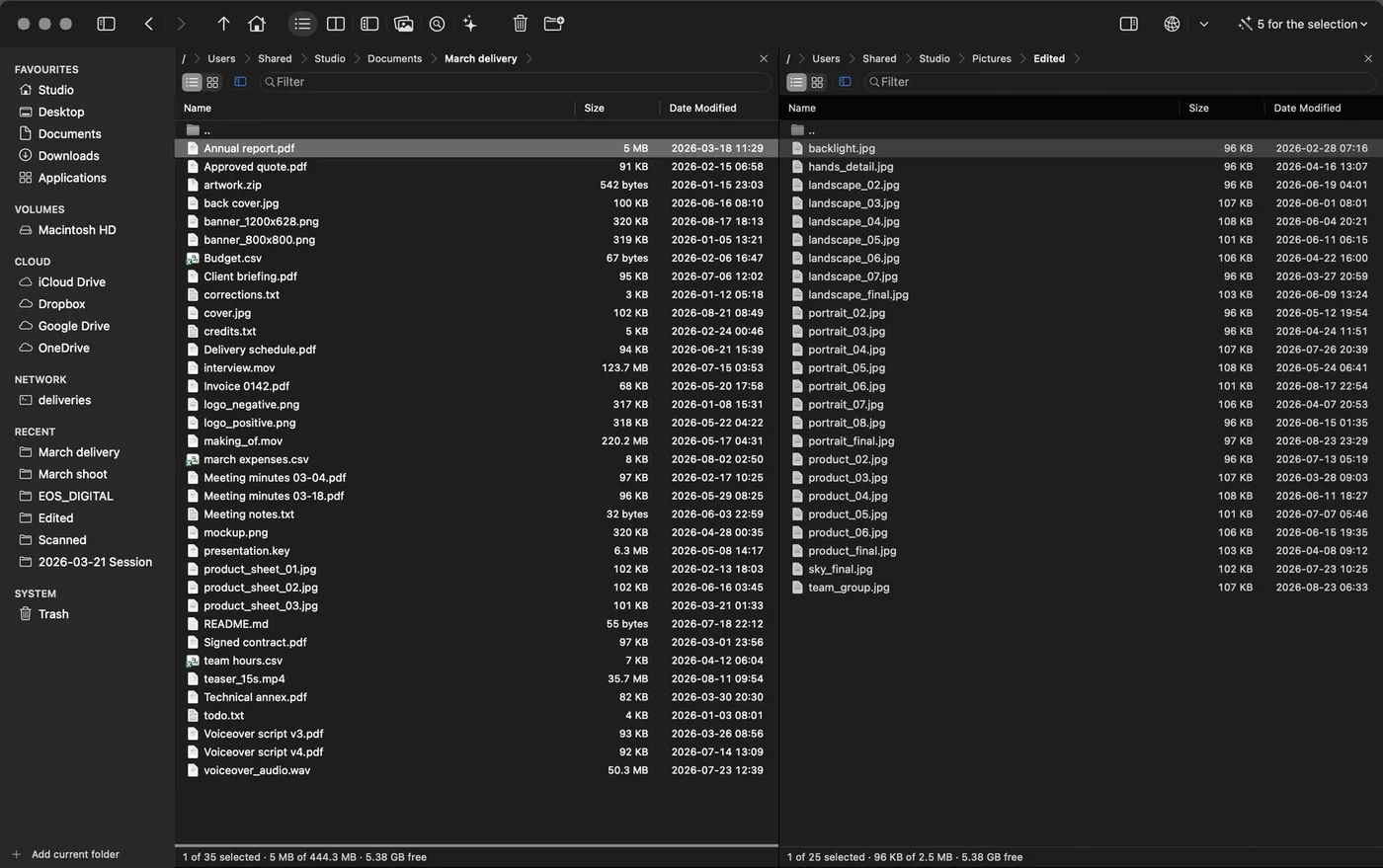
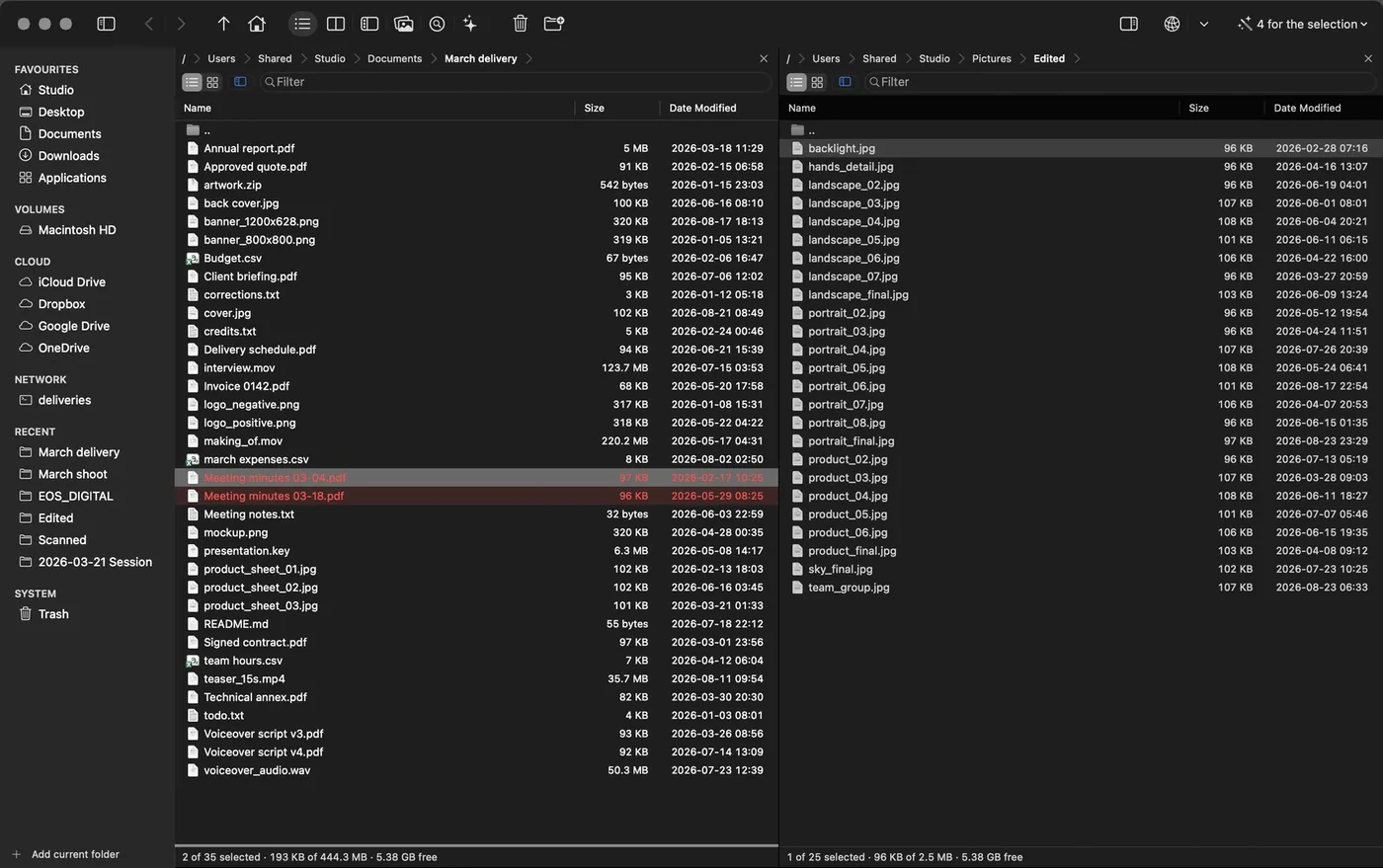
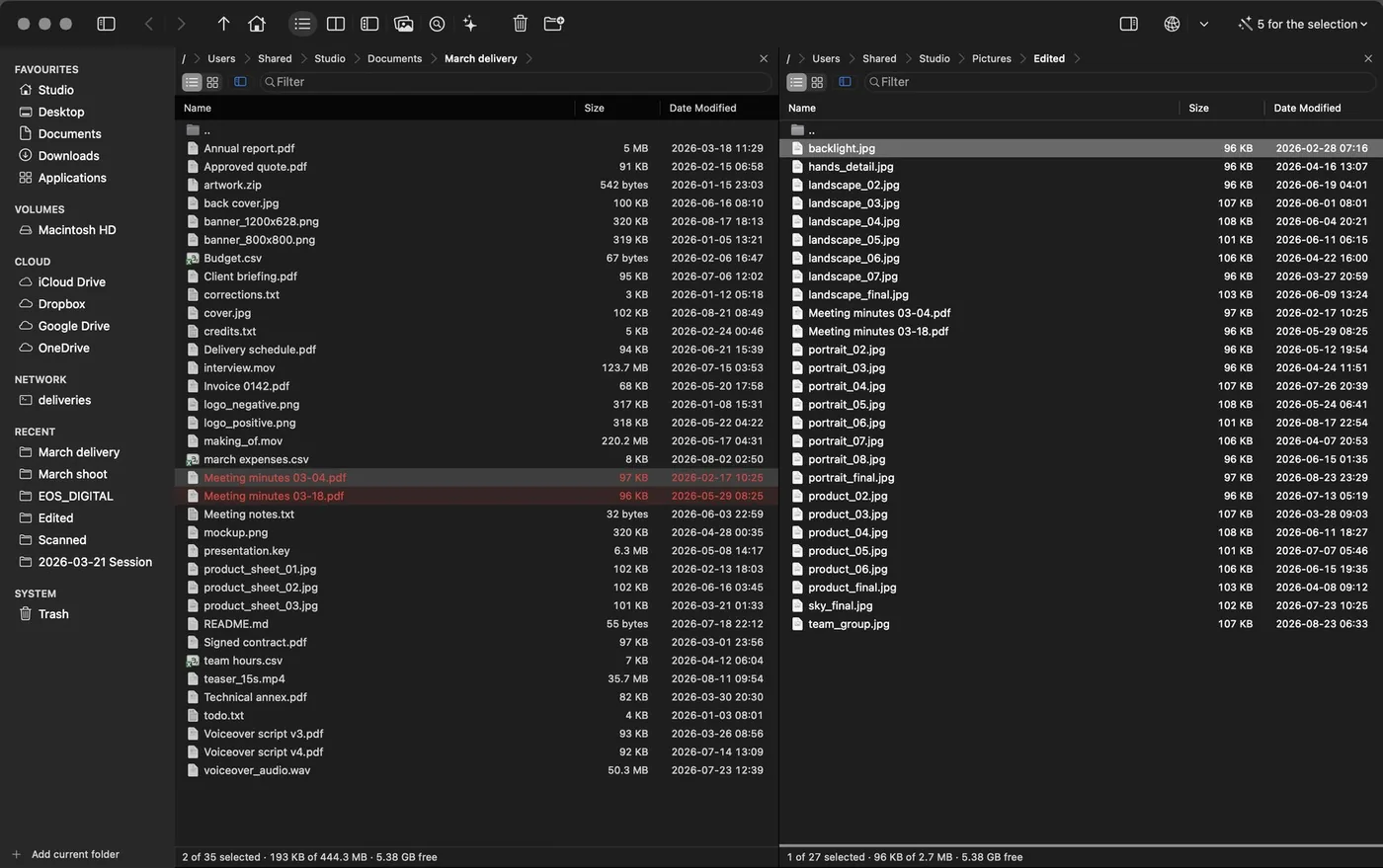 ⌘→
⌘→
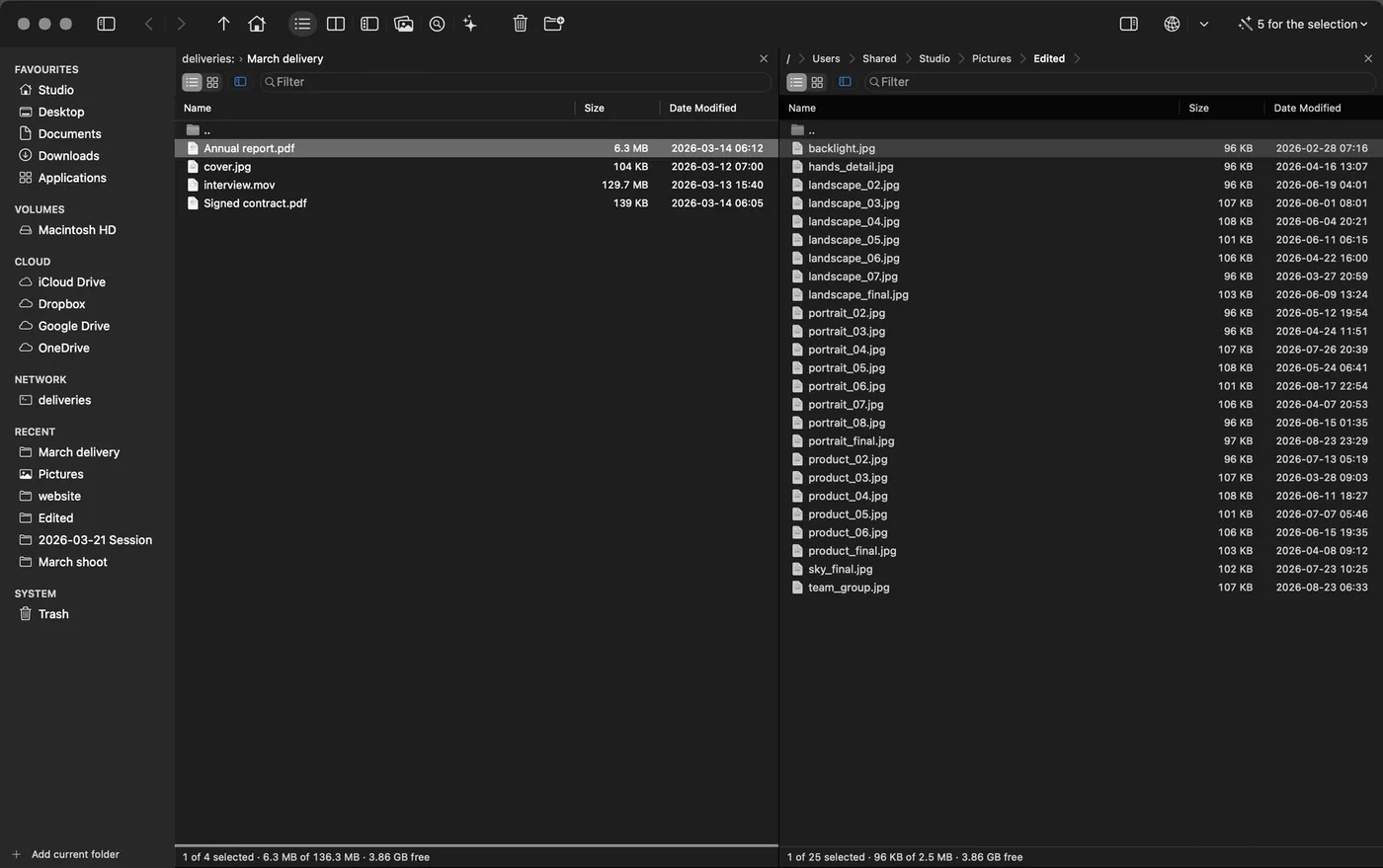
01The toolbar
Up there, only two questions: where am I and how am I looking at it.
Not one file command. Copy, move and delete live on the keyboard, in the context menu and in ⌘K — not in a row of icons you have to learn.

The commands, where they are used
Navigation, view and modes: the same things ForkLift and Transmit keep up there. File commands live where they are actually used —the keyboard, the context menu and ⌘K—, and every one of them teaches you its shortcut while you use it. A row of icons teaches nothing; you have to learn it.
The button that changes
The group on the right depends on what you have marked: «5 for the selection» opens what can be done to those five. It sits at the right edge because it is the only thing that changes size, and with nothing selected it dims in place instead of disappearing: if it left, everything else would shift every time you mark something.
And it is customizable, like any native toolbar: «Customize Toolbar…» holds the rest of the commands, for anyone who wants them up there.
02And if it still collides
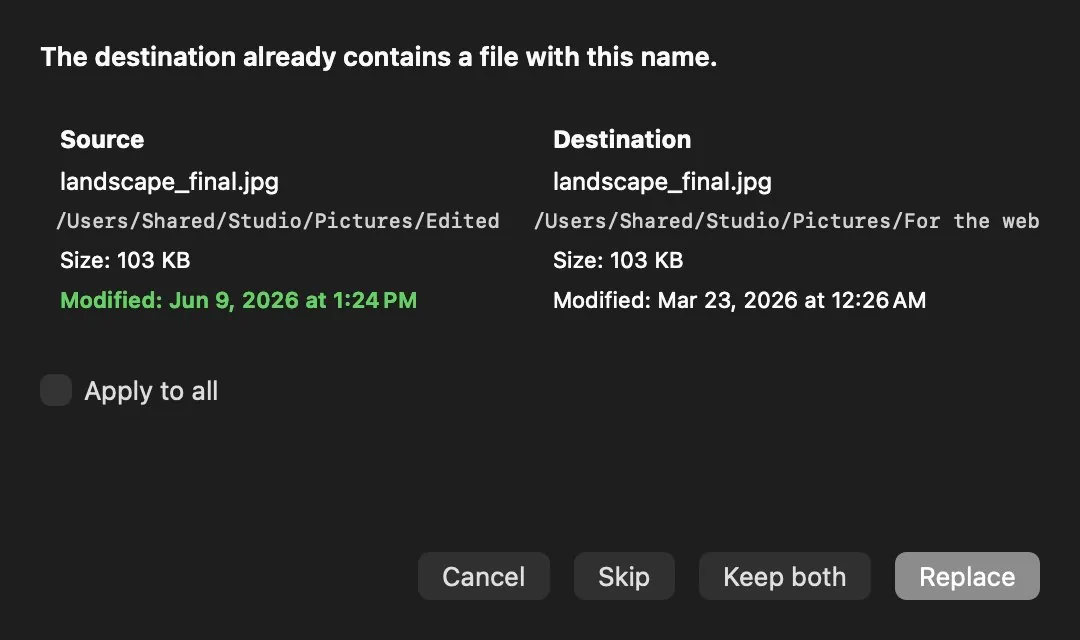
Deciding with both files in front of you.
When the name already exists, the question isn't «replace?» but «which of these two?». Source and destination, side by side, with their path, their size and their modification date.
Keep both renames instead of destroying. And «Apply to all» exists so that four hundred conflicts aren't four hundred questions.
03Cards and deliveries
What you are about to erase, verified first.
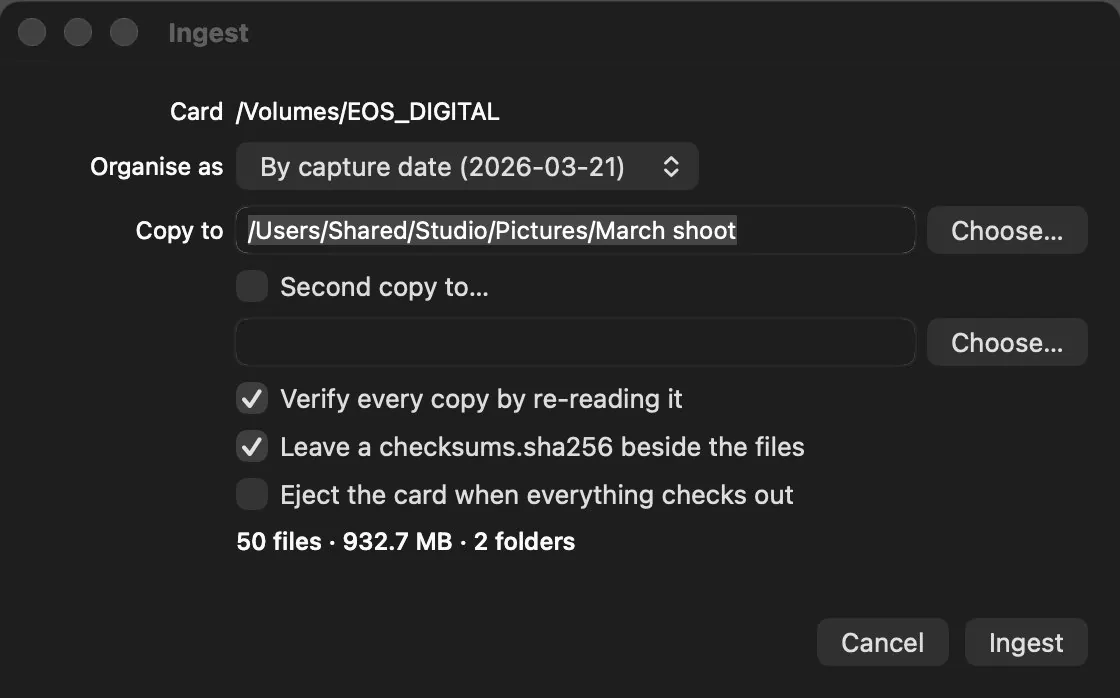
Emptying a card, a shoot drive or a shared folder is an act of faith. It stops being one when every file was re-read from disk and there is a document saying what was there.
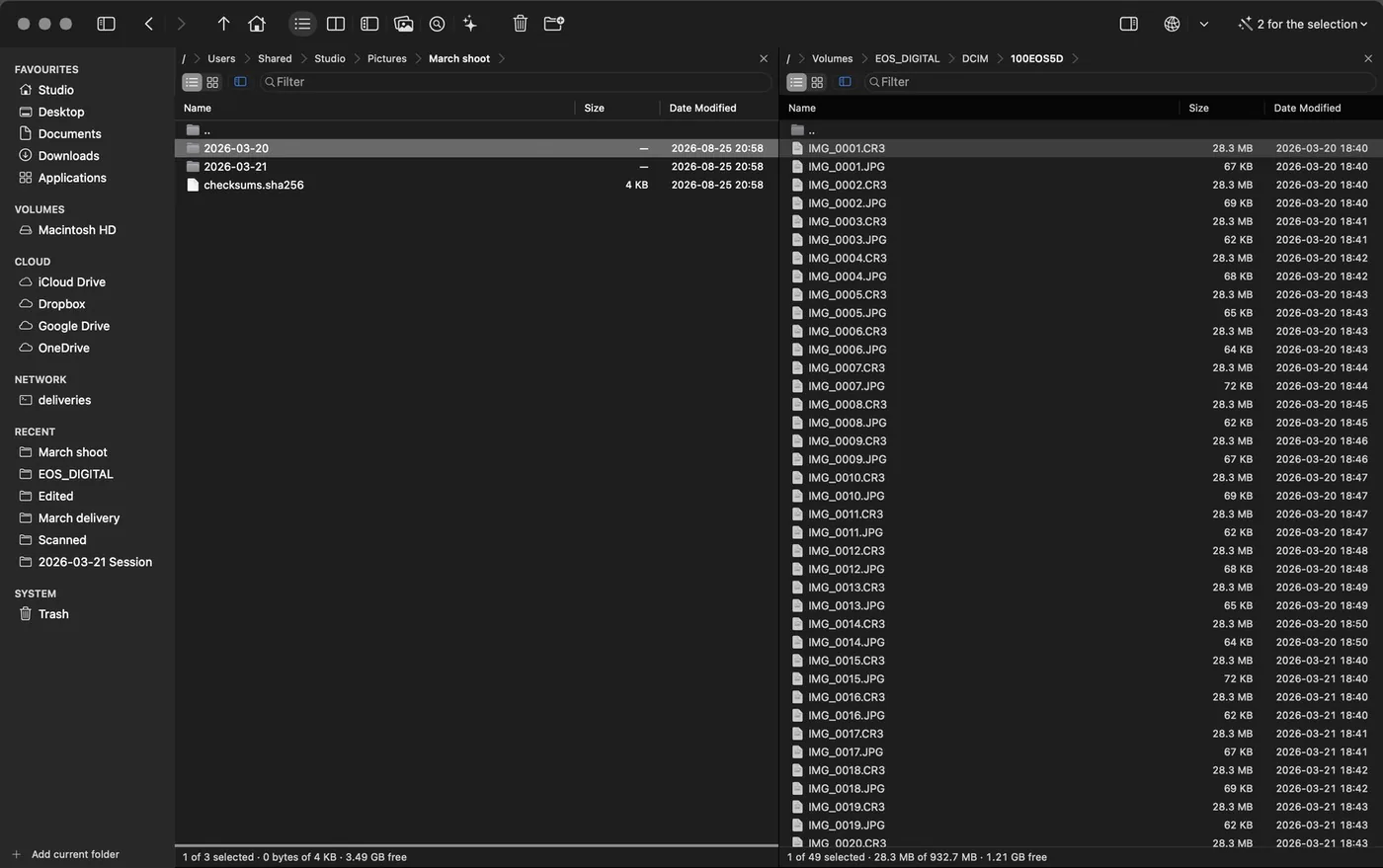
Ingest copies the card to one or two destinations at once, organizes by capture date, by object and filter or by kind, verifies by re-reading, leaves a checksums.sha256 beside the files and only then —if everything came out clean— ejects the card.
The directory report is the other half: paginated PDF, self-contained HTML, text, CSV or JSON, always with its .sha256 beside it. Two runs over an unchanged folder produce a byte-identical file, which is what makes them comparable.
And it certifies exactly what it can certify, printed in the document itself: what was read, when, and with which algorithm. A report that promises more is no use to anyone who has to lean on it.
Directory report
The document that certifies what a folder held when it was read. Five formats, and the only one a reader can re-verify without this app.
04Finding
Four ways to answer «where is it?».
And a fifth for «where did my space go?». All of them end up in the panel, on real files: a file manager has to be able to act on what it found, not just show it to you.
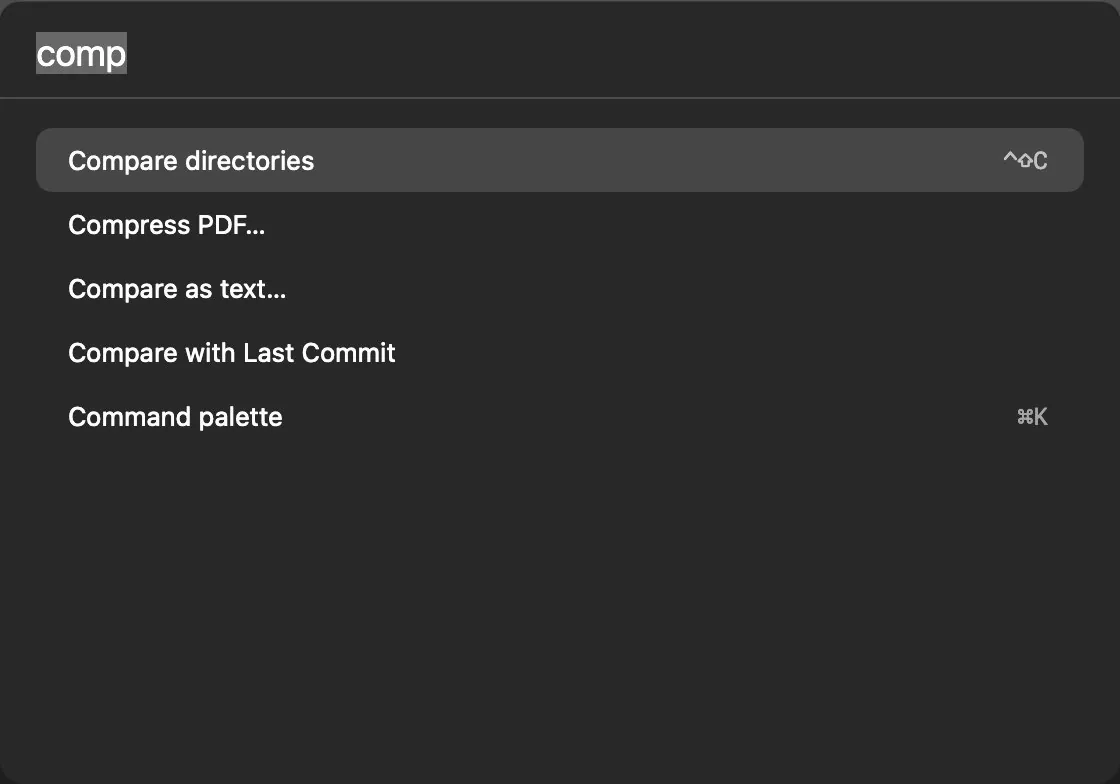
⌘K: nothing to memorize
Type three letters and the command appears, with its shortcut beside it. That is how you learn the keyboard without reading a table: the palette teaches you the shortcut while you do the work.
Every action in the app is in there, and so are the folders you tend to visit: they come sorted by how much you use them and how recent the last visit was, so the one you want is usually first.
That is why the function-key bar, the volume bar and the command line ship hidden: they are one shortcut away when you want them, and meanwhile the height of the window belongs to your files.
Three letters, and the command appears with its shortcut beside it.
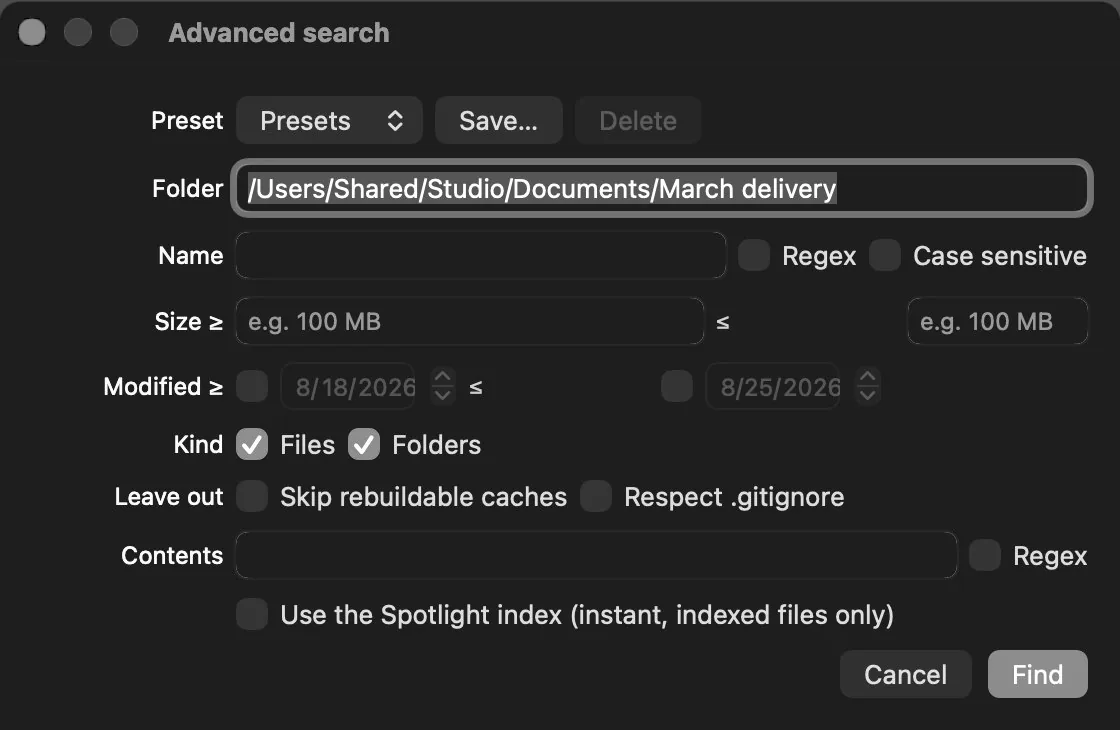
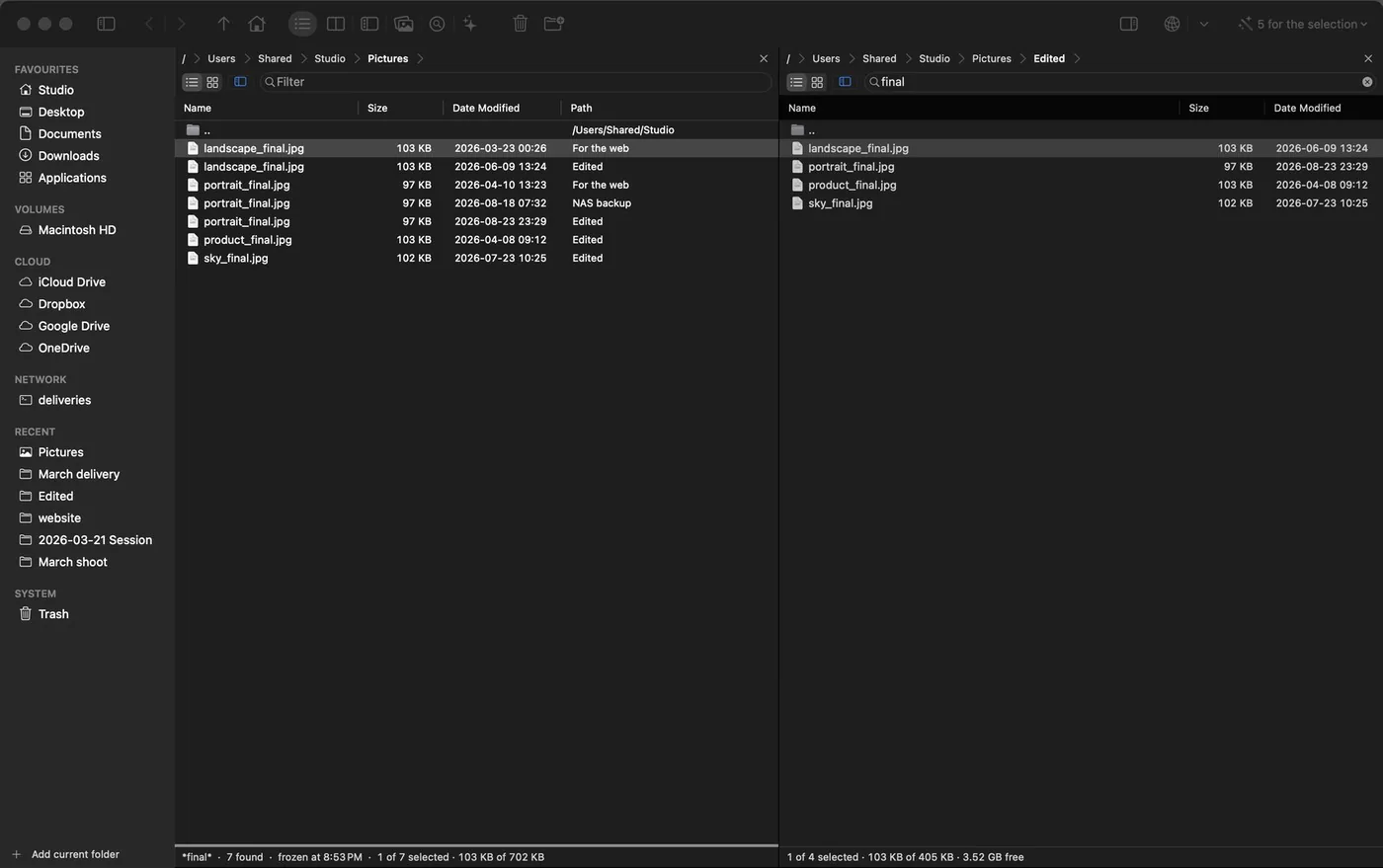
And what it finds stays where you can work on it
Results land in the panel, not in a window with one button. From there everything the app can do to a file applies to them: copy them to the other side, pack them, rename the lot, change their permissions, produce a report or run one of your own commands over them. While the set is up the Path column appears, saying where each row lives relative to what you searched — three files with the same name are three different files.
And it is a photograph, not a folder: the panel is still where it was, the status bar says when the list was taken, and nothing refreshes it behind your back. A stale list that looks alive is worse than one that admits it. .. puts the folder back.
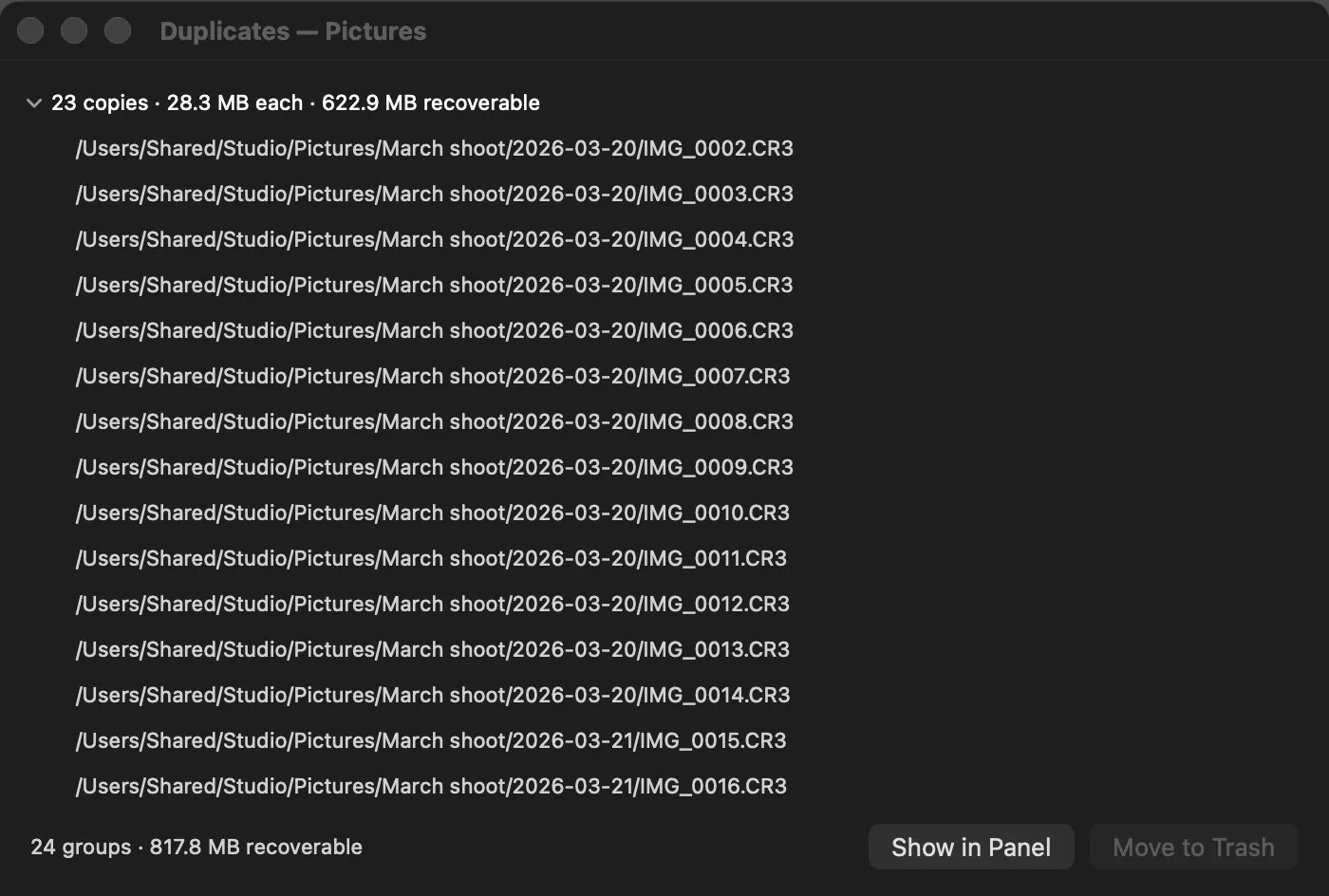
Duplicates, the cache hunter and the folder comparison hand over the same way: a «Show in Panel» button, and what they found becomes something to work with. Deleting stays in their windows on purpose — the duplicate finder is the only place that knows what a group is, and therefore the only one that can refuse to delete every copy of one.
Three passes, cheapest first: only the candidates pay for the SHA-256.
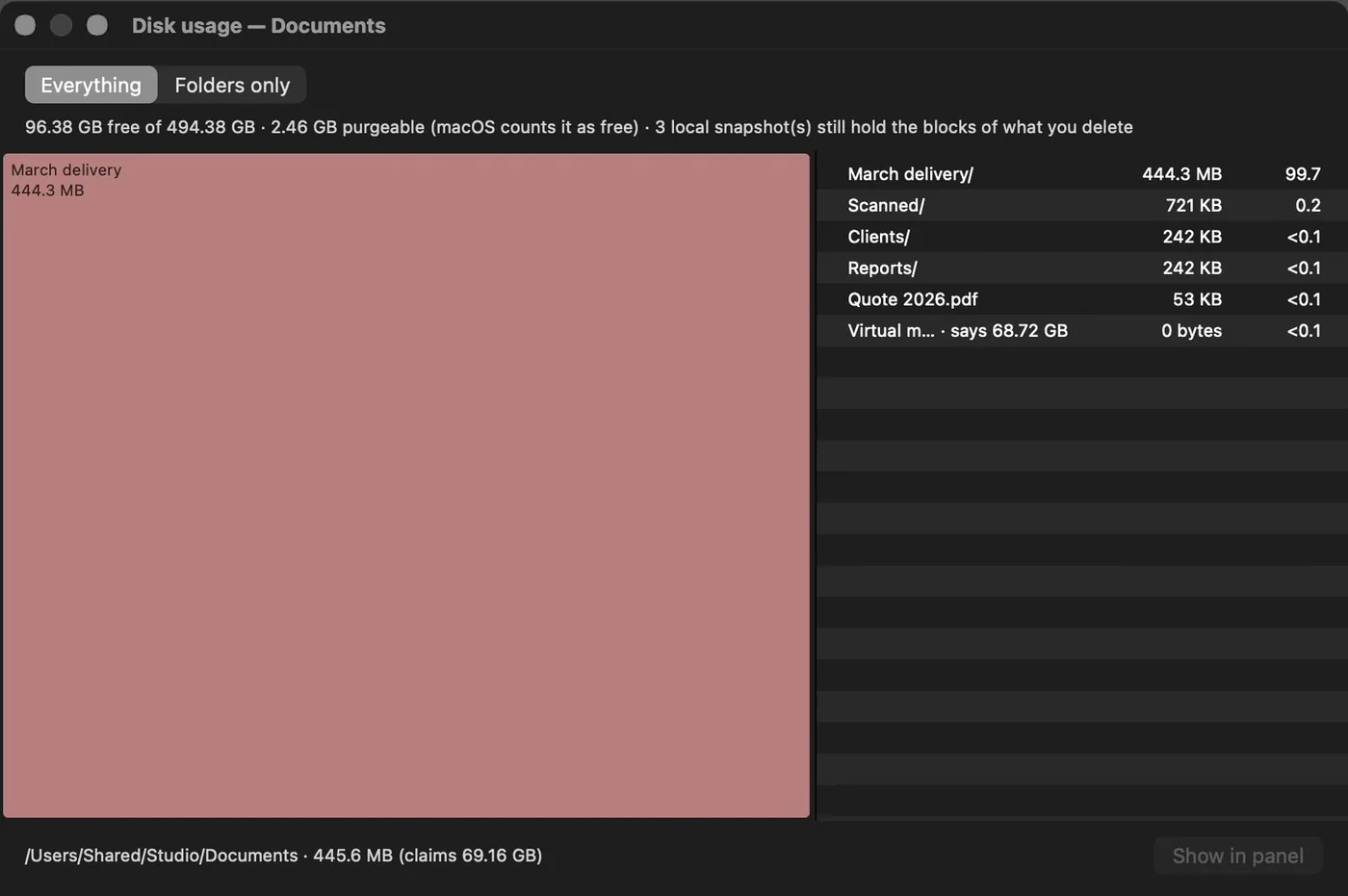
Click a tile and the pane goes there: it is for deleting, not just for looking.
05Renaming in bulk
Four hundred files, one template, and the list before you accept.
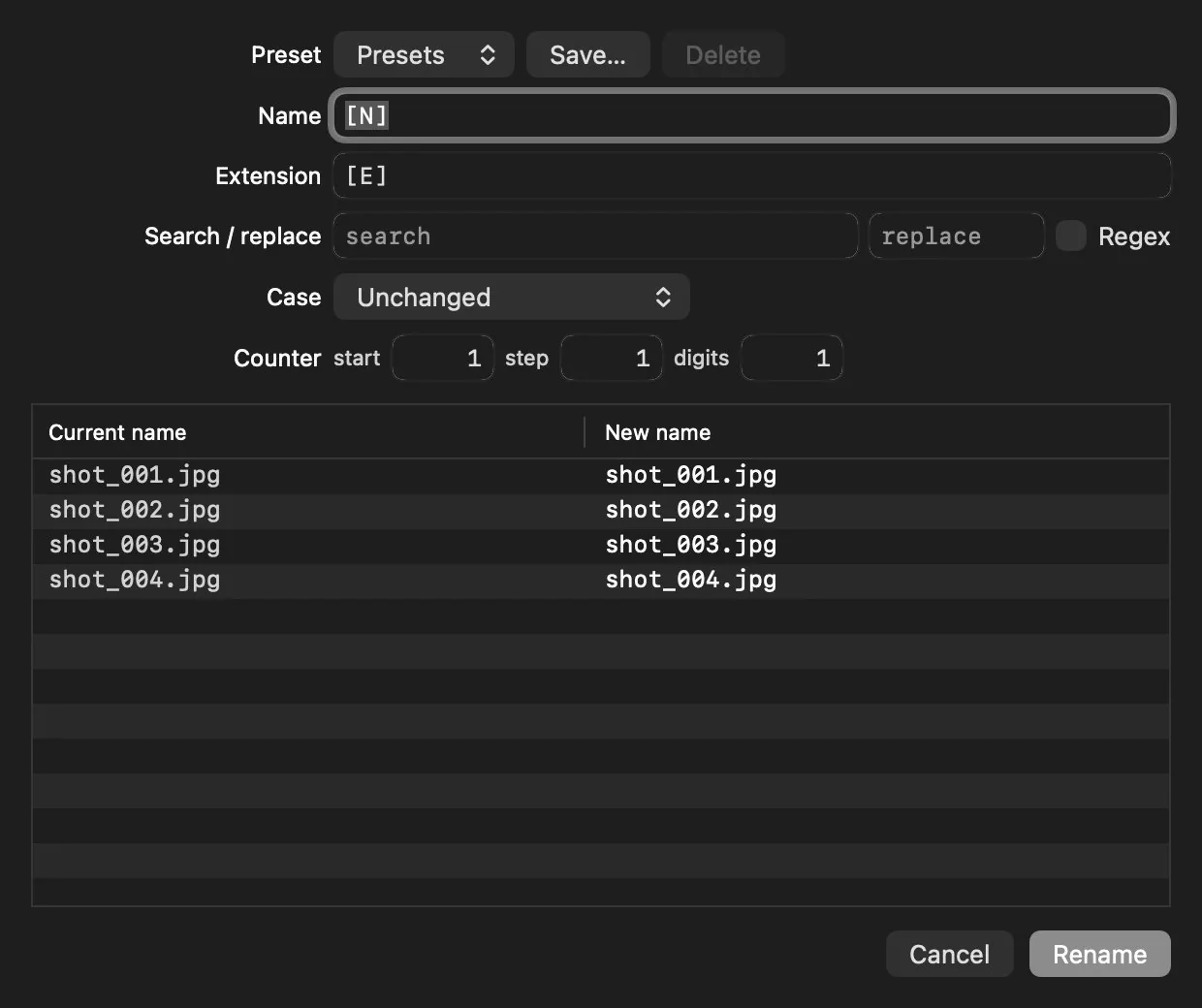
A template with the name [N], the extension [E] and a counter with configurable start, step and digits. Search and replace, with regex if you need it. Upper and lower case.
The table below shows current name next to new name as you type. Nothing is touched until you press Rename, and the whole batch undoes in one go.
Live preview: nothing is renamed until you press the button.
06Documents
PDF, without opening another application.
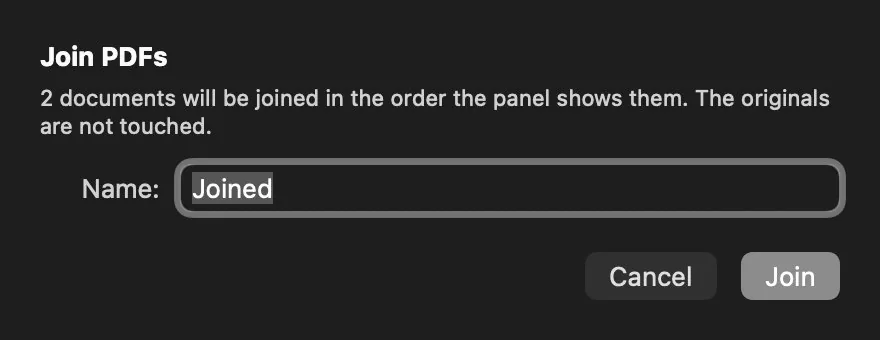
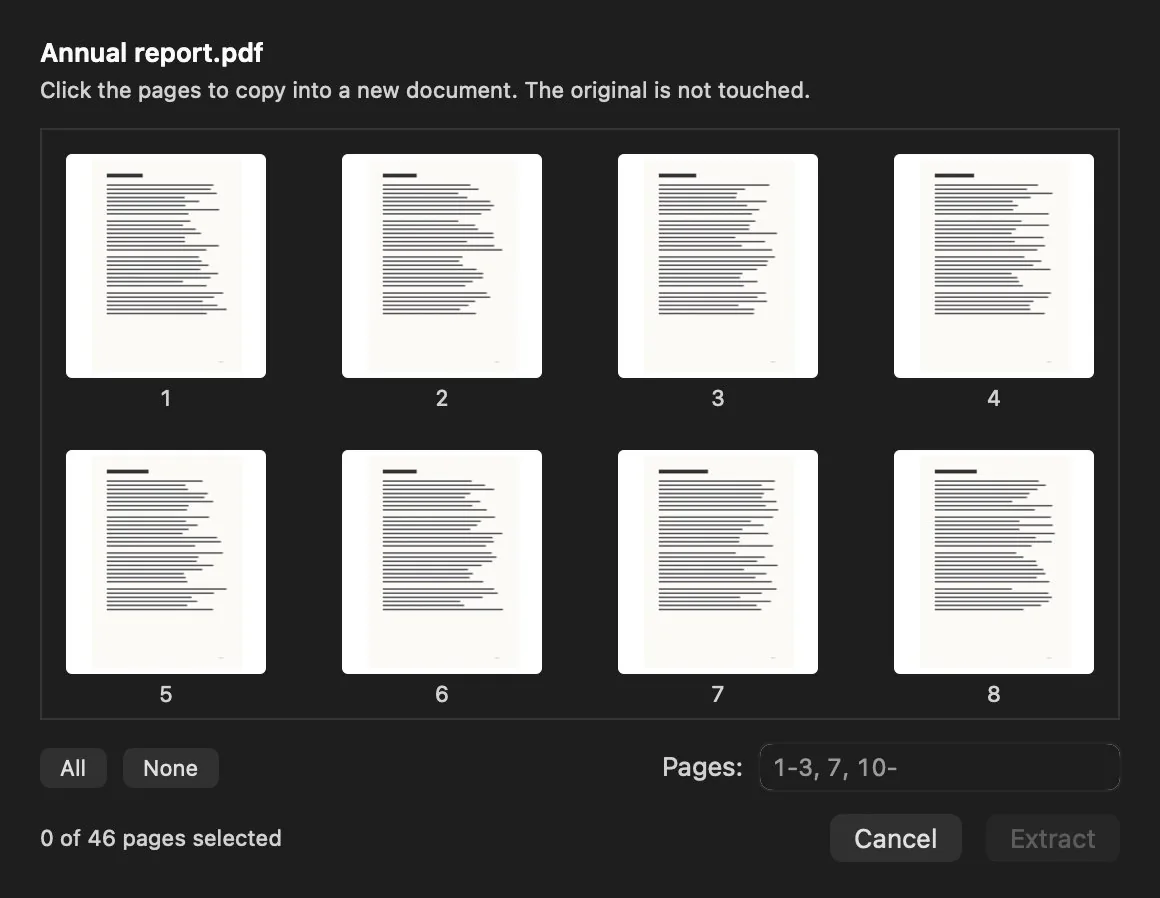
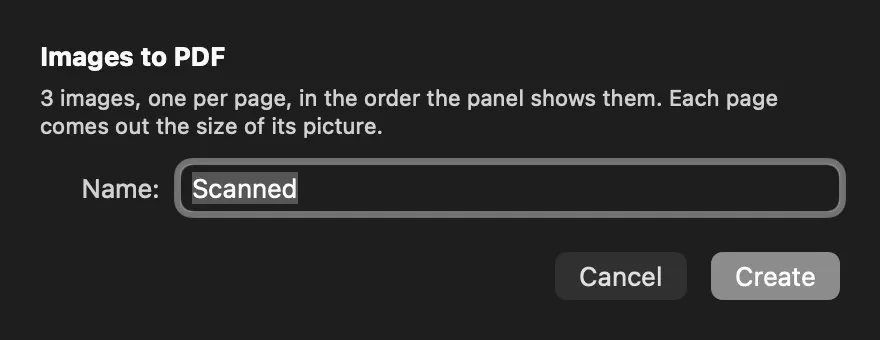
Merge, split, rotate, reorder, compress, convert to images and from images, read and search inside. These are operations on files —just like compressing— so they live where the files are, not in a separate editor. None of it touches the original: a new document is always written, with a name that doesn't overwrite anything.
They merge in the pane's order — sort by date first and that is what comes out.
And besides
Rotate, delete and reorder pages — rotating is metadata in a PDF, so it is instant however large the scan. PDF to images at whatever dots per inch you choose.
Compress with the system's own filter, which keeps the text selectable instead of rasterizing the page. And if the result came out larger —it happens, with already-optimized documents— it writes nothing and tells you.
The viewer walks the document, searches text inside it with ⌘F and shows the thumbnail rail, without leaving the file manager.
07Metadata
Forty files, one change, four different operations.
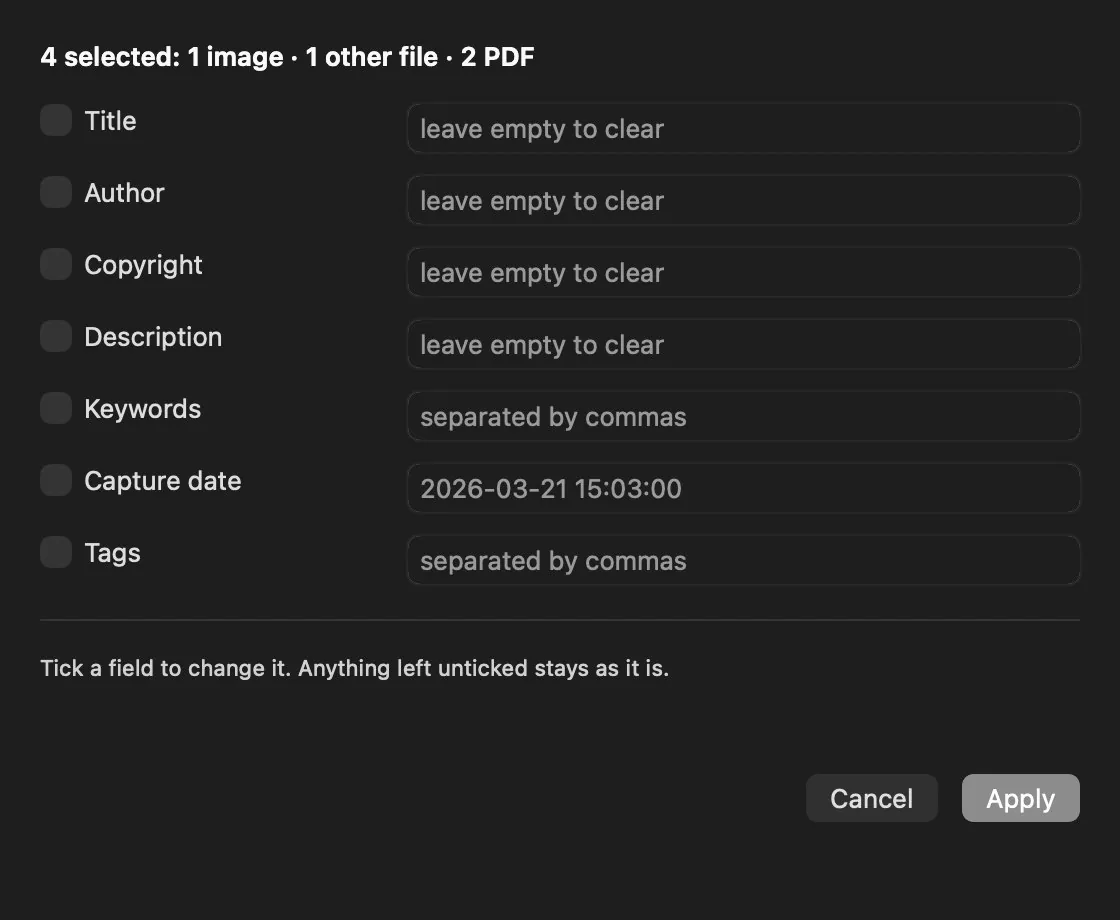
Putting your name and your copyright on a delivery isn't one change, it is four: a photo keeps that in IPTC, a PDF in its dictionary, a RAW in a place that belongs to the manufacturer, and a zip nowhere at all.
The editor sorts it out for you and tells you what it will cost before you press: how many files get rewritten, how many get a sidecar and how many are only tagged. Every field has its own switch, because «I didn't touch the author» and «I want the author empty» can't mean the same thing when forty files are at stake.
- ✓A RAW is never rewritten. Its metadata goes to an .xmp beside it, which is what the rest of the photography software reads. A modified CR3 can stop opening in the manufacturer's own program.
- ✓Tags work on anything —a zip, a folder— because they belong to the file system, not to the format. And they don't rewrite the file.
- ✓What a file can't hold is reported, not dropped in silence.
The same field, four formats, four ways of storing it — all stated before you press.
08Modes
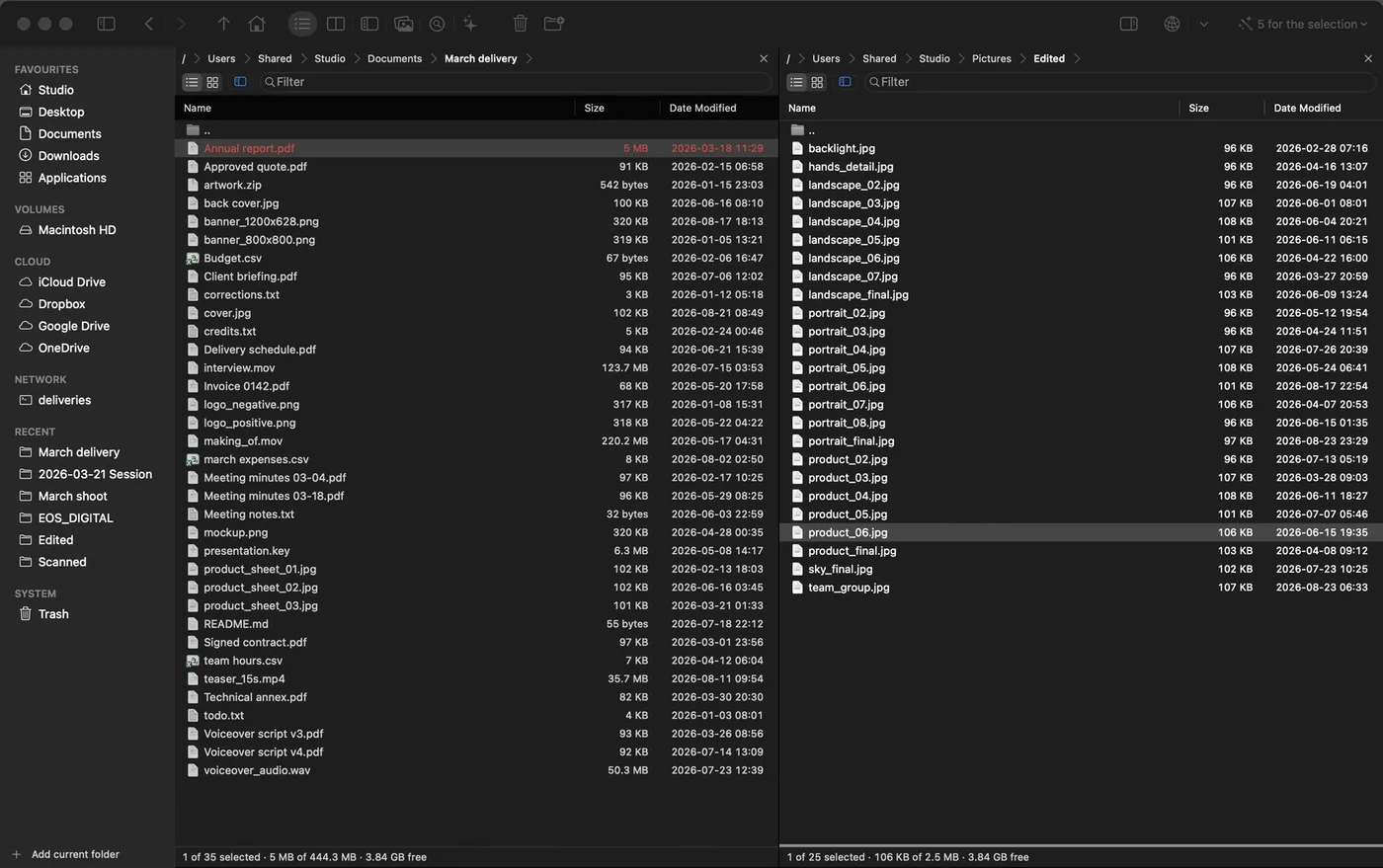
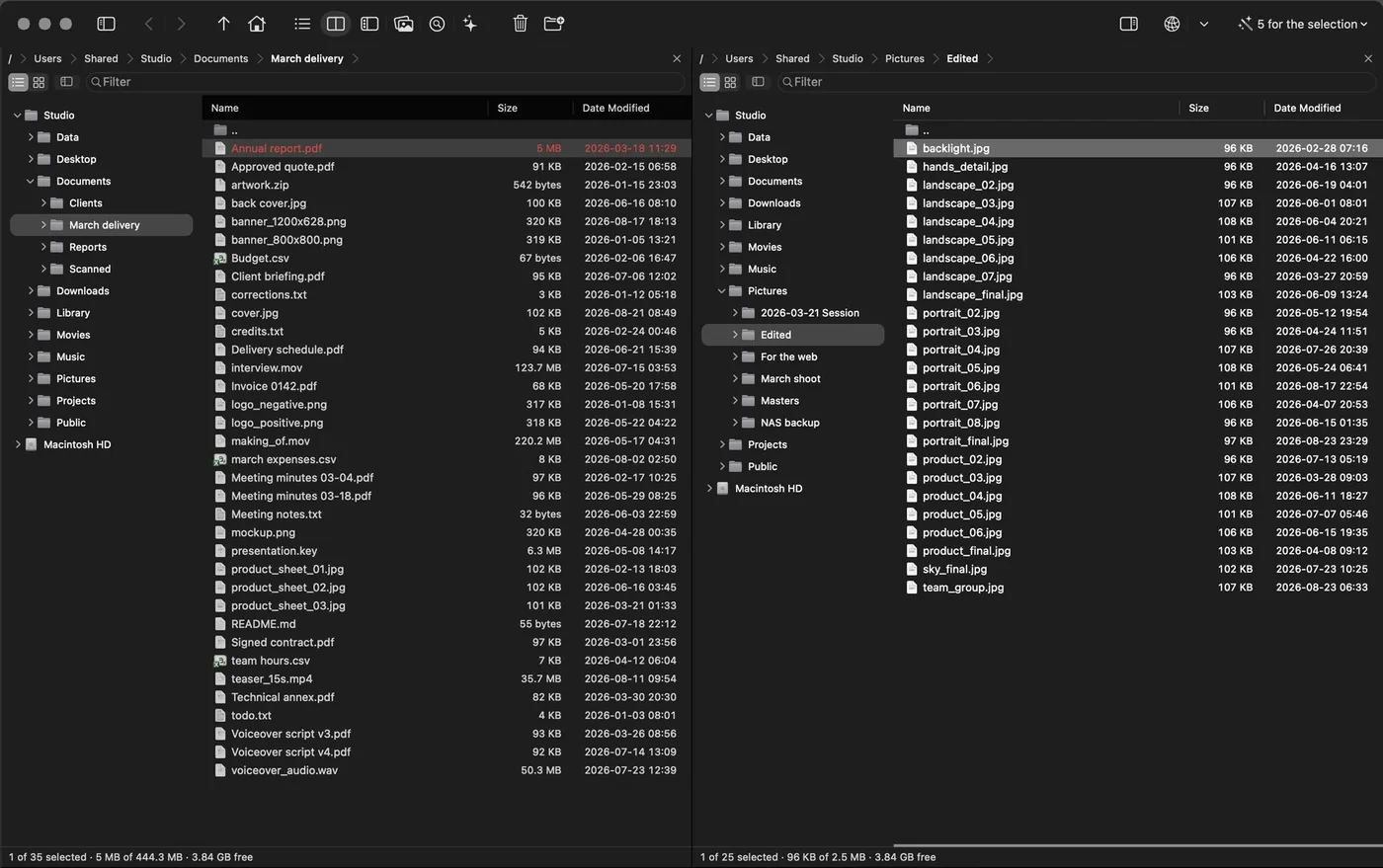
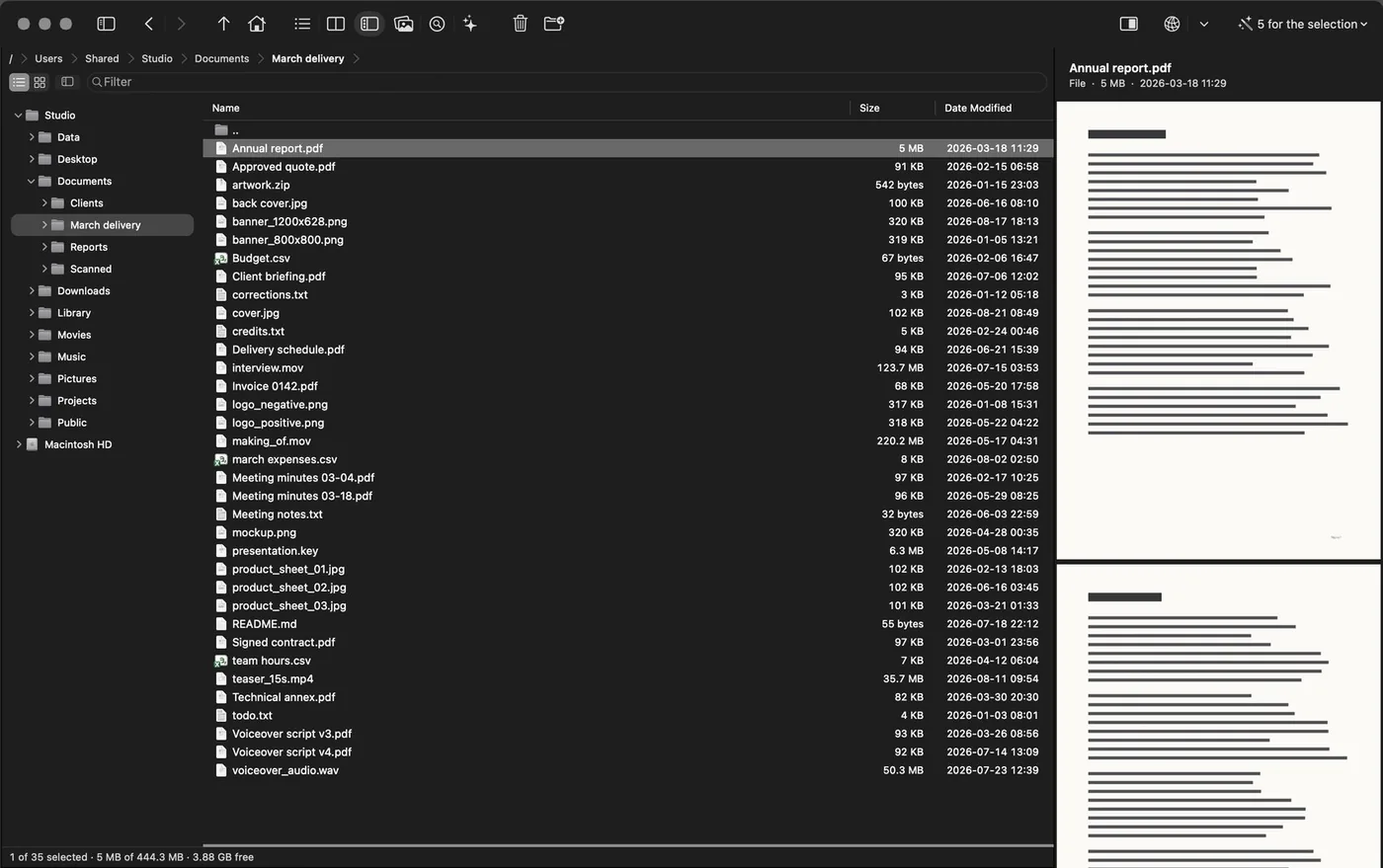
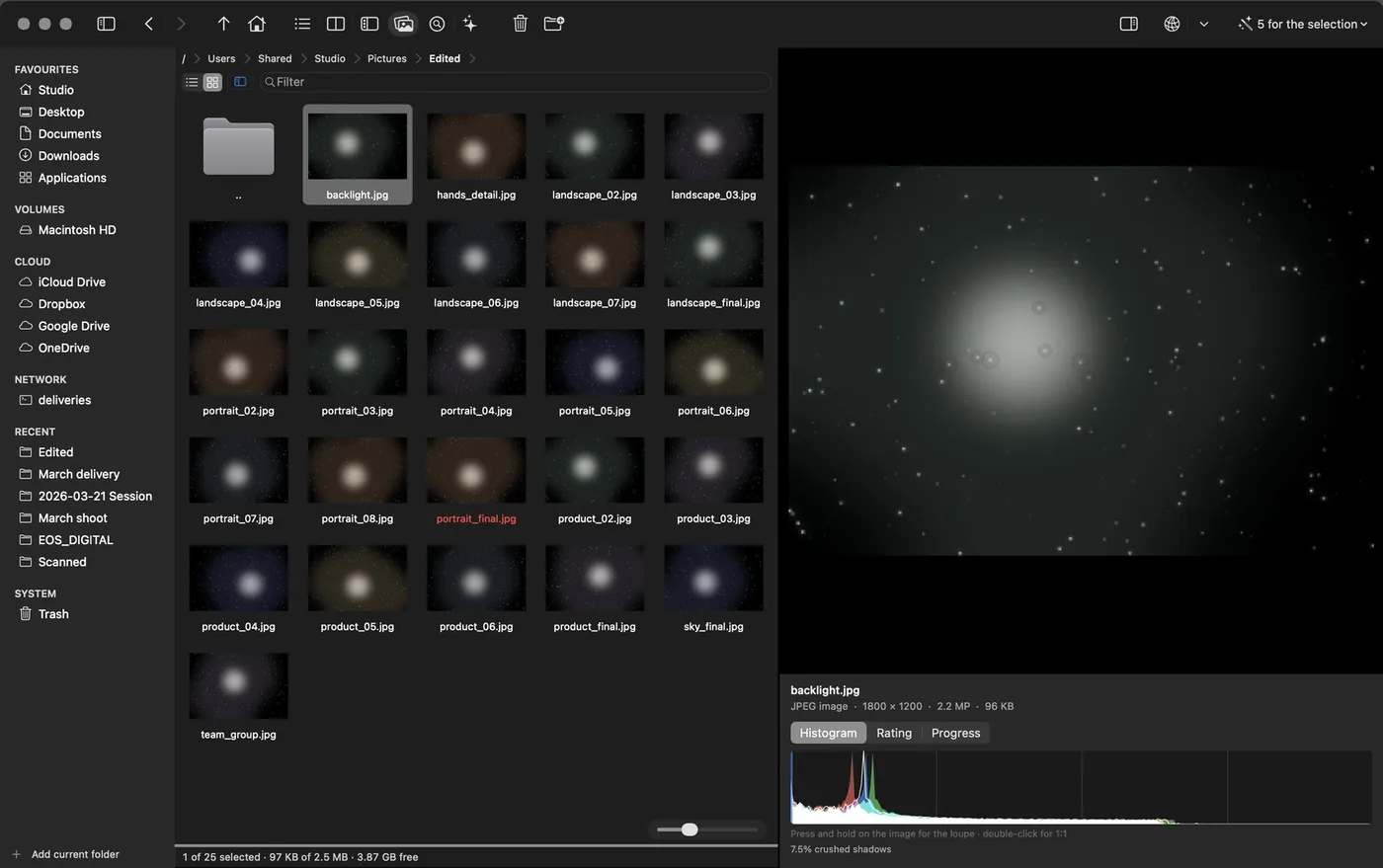
The window rearranges itself for the task. And puts itself back.
A mode doesn't add buttons: it takes away what's in the way. It is a session, not a setting — on the way out, the app puts the window back exactly as you had it. There are six: switch from the toolbar, with ⌥⌘1…6, and leave with Esc.
1Files
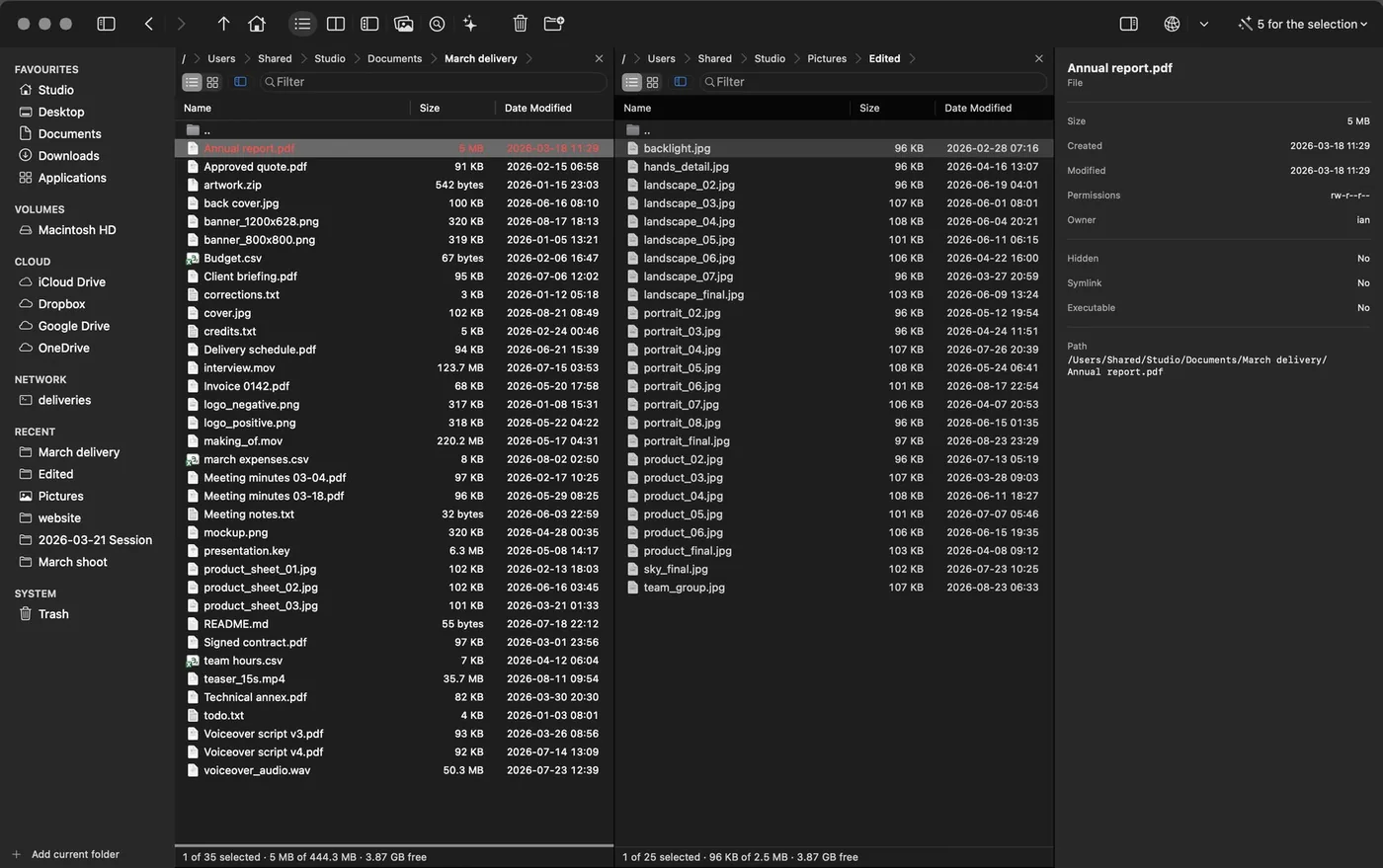
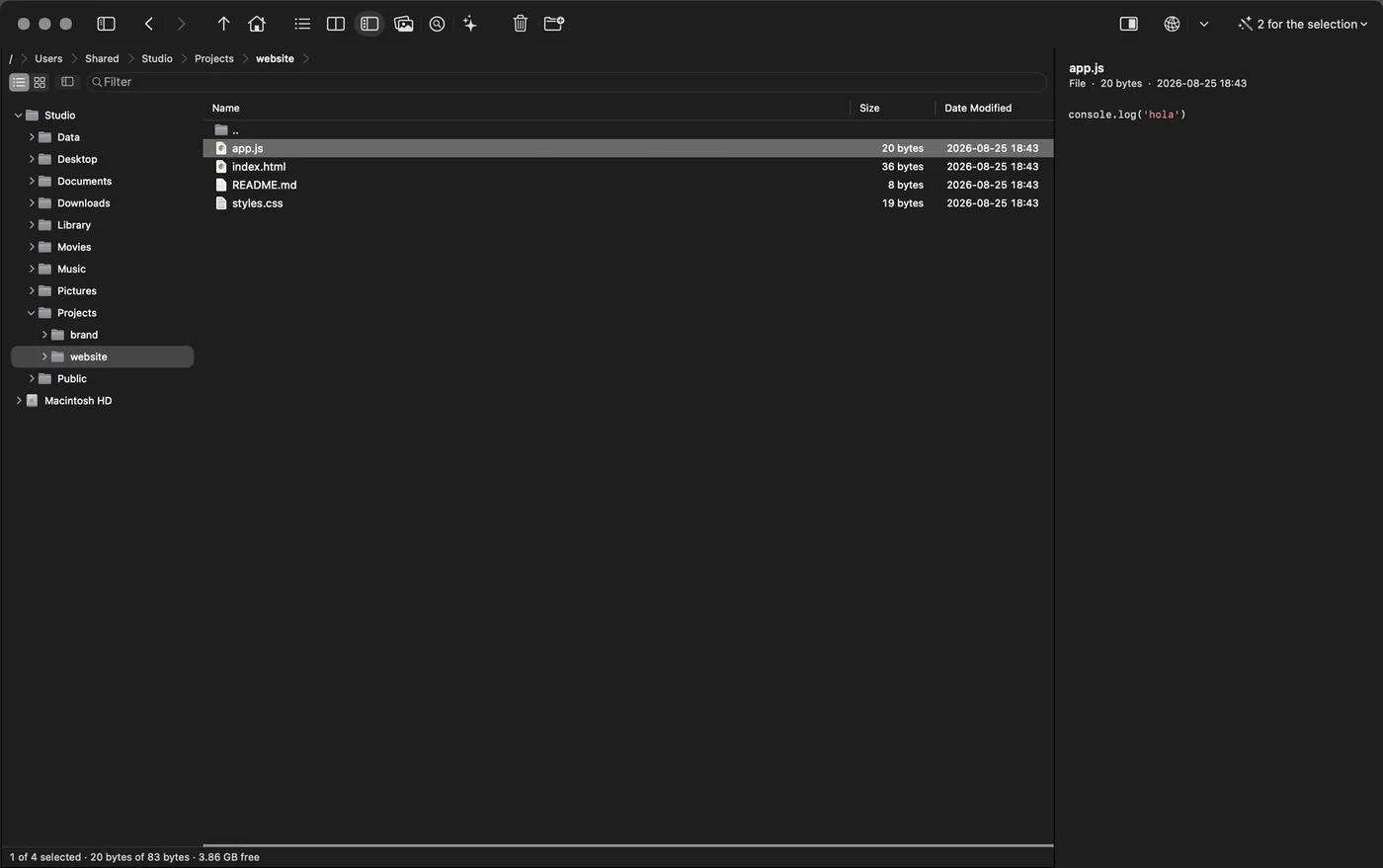
The normal mode. List or thumbnails, with a size slider that goes up to 220 px and crisp thumbnails at any scale — RAW files included, read from their embedded preview instead of being developed.
And the properties pane beside it, with the metadata the file carries inside.
4Review
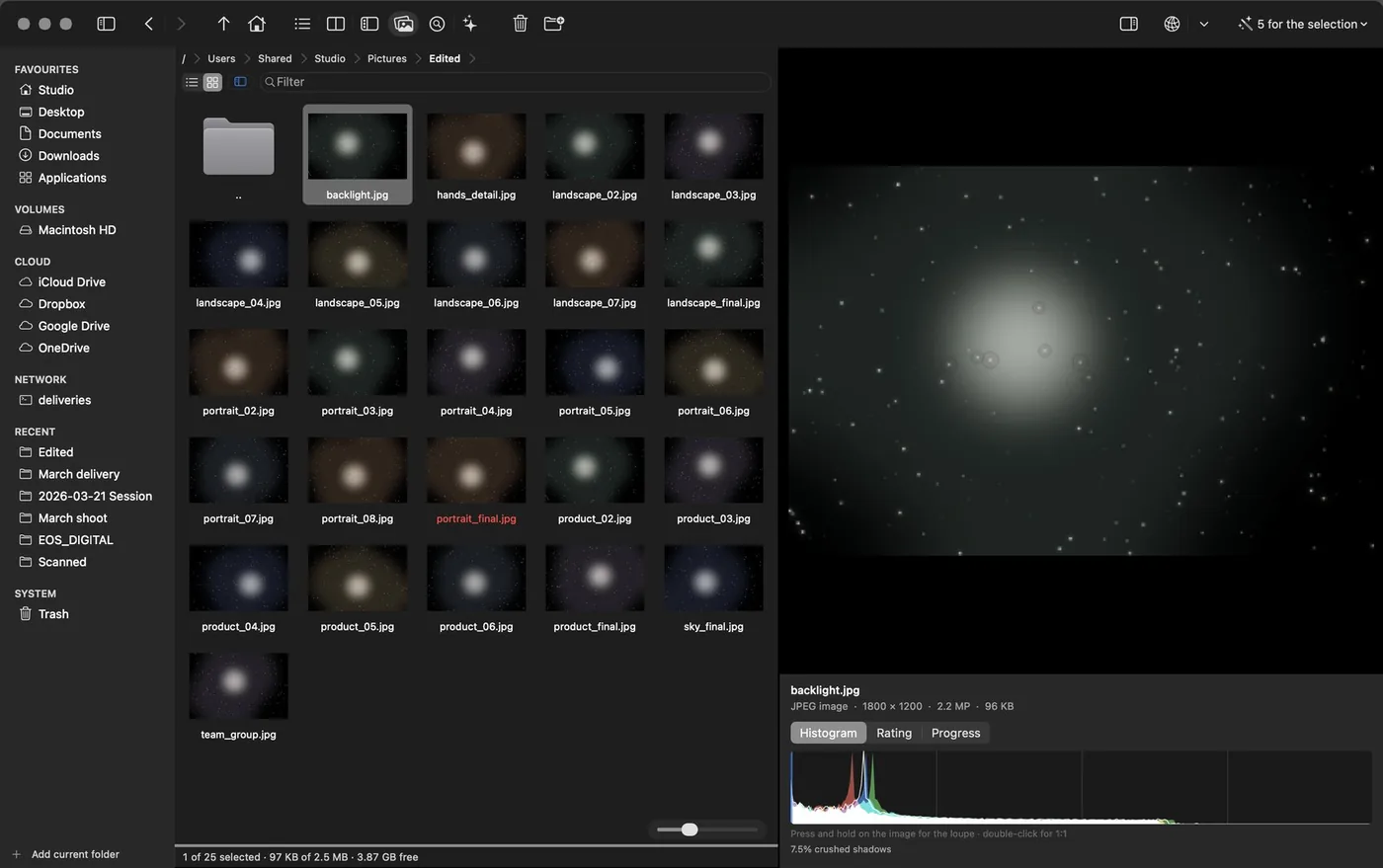
A wide pane, images only —photographs, screenshots, scans, renders— and the large one beside it with what the file says about itself: kind, dimensions, weight, and if it carries one, the camera with its exposure triangle.
Below, the RGB histogram with its reading: how much is blown out in the highlights and blocked up in the shadows. The peak ignores the extremes on purpose — otherwise a black sky flattens the whole curve against the floor and nothing shows.
5Inspect
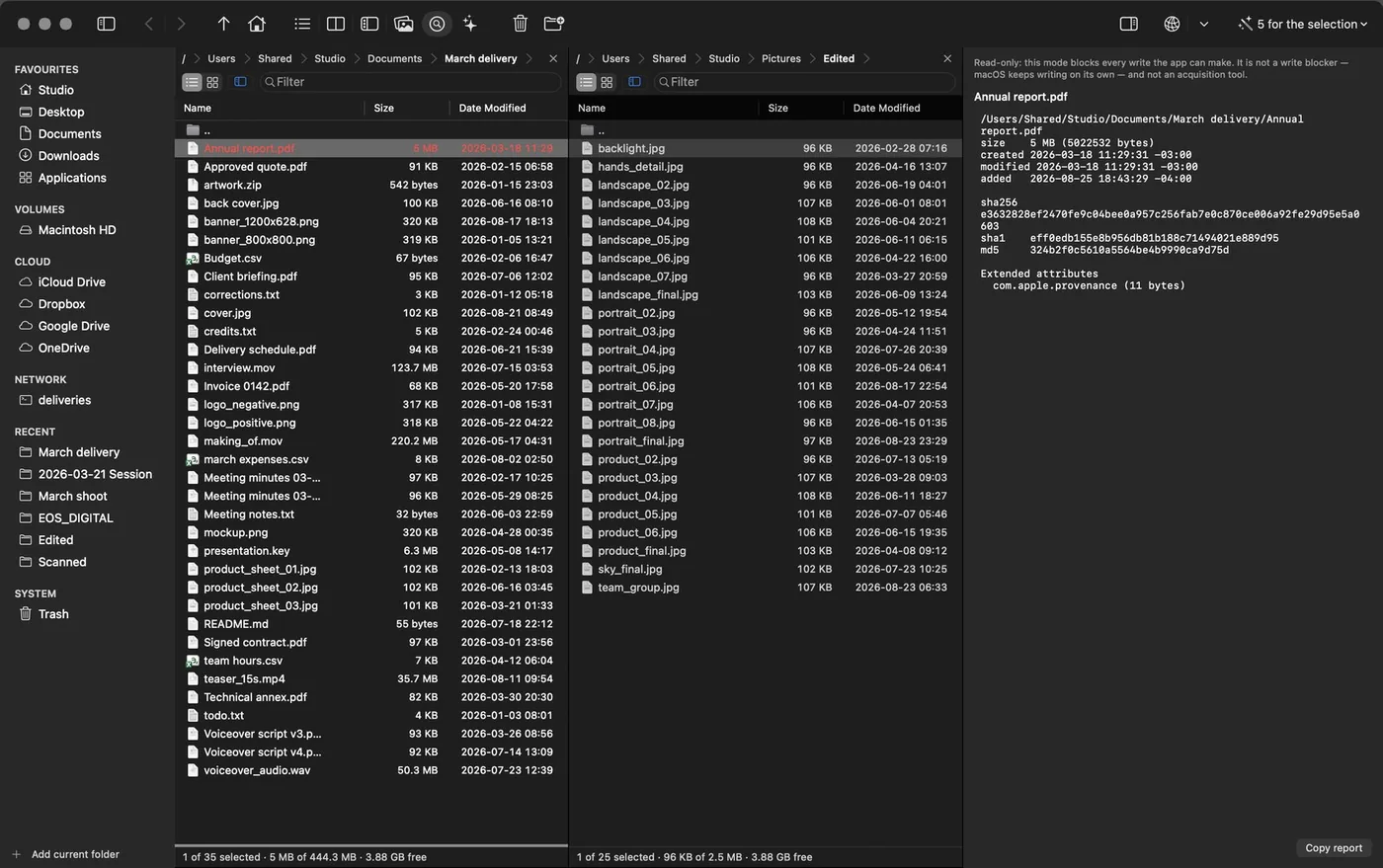
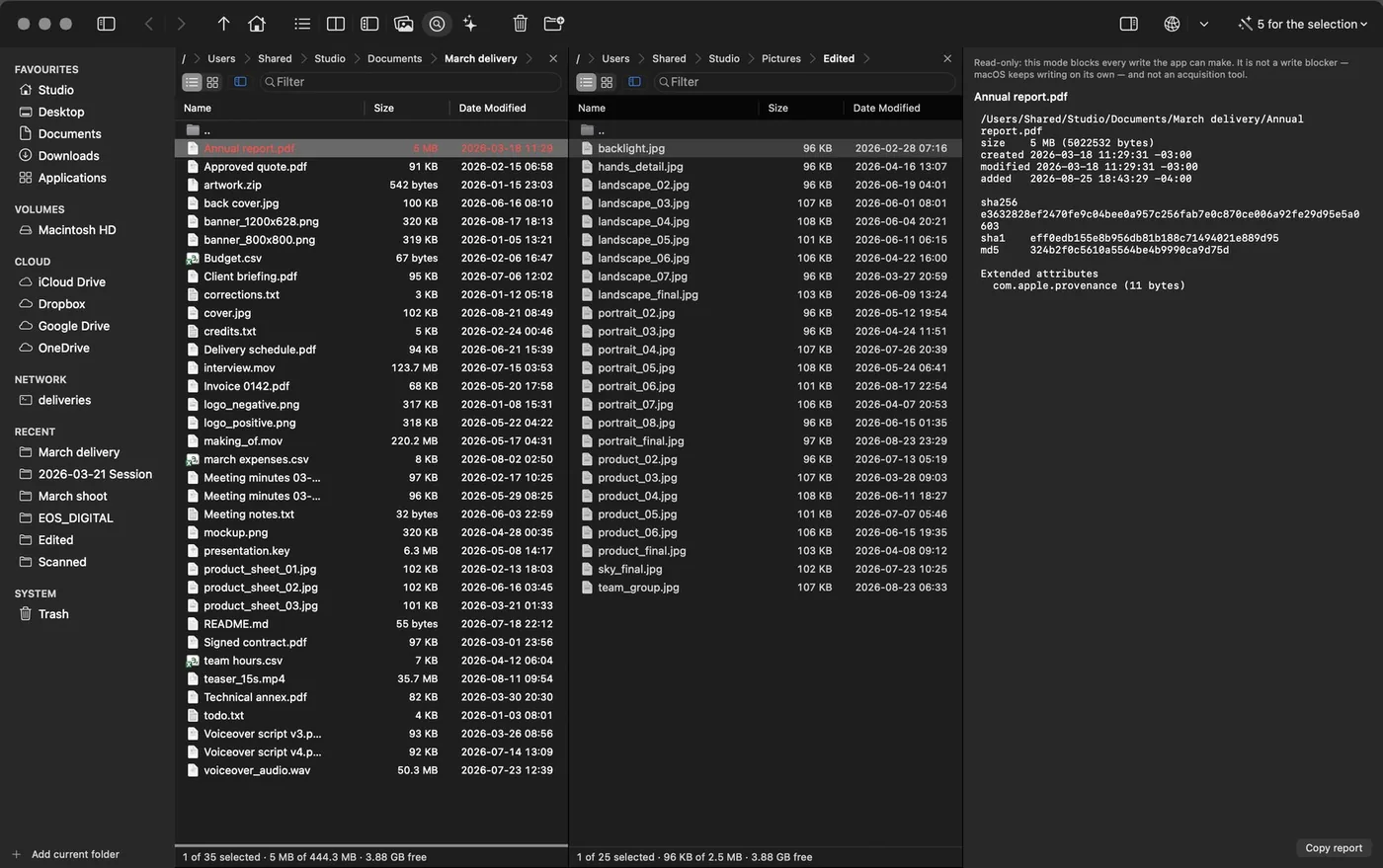
Read-only, guaranteed by the app: while you are in this mode, no write leaves OrthodoxMac. It shows hidden files, and for each file a report: SHA-256, SHA-1 and MD5; where it was downloaded from, with which app and when; all of its extended attributes; and dates that contradict each other.
What the mode guarantees is that the app doesn't write. macOS keeps doing its own thing underneath, so it is not a substitute for a write blocker — and it says so in the panel itself, instead of letting you assume otherwise.
2Clean
Two panes with a folder tree in each, no sidebar and no preview. For moving things around and nothing else.
3Browse
One panel, its tree, and the preview beside it — a PDF, a text file, code with its syntax coloured, or an image. For when you are not copying but looking for something with your eyes.
6Cleanup
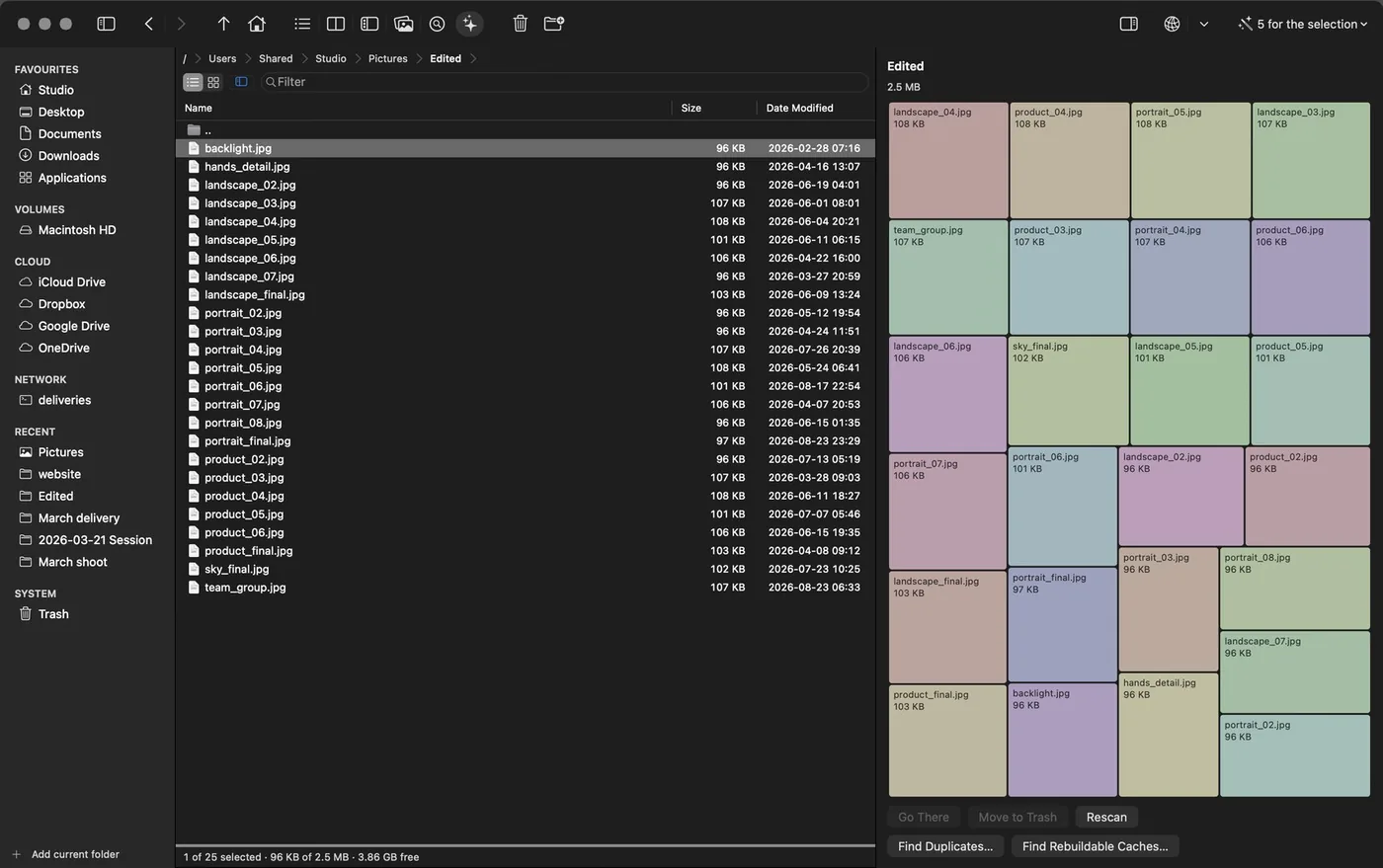
Find what is eating the disk: regenerable caches, leftovers from uninstalled apps, and whatever weighs without earning it.
09Formats and network
No need to go looking for another app.
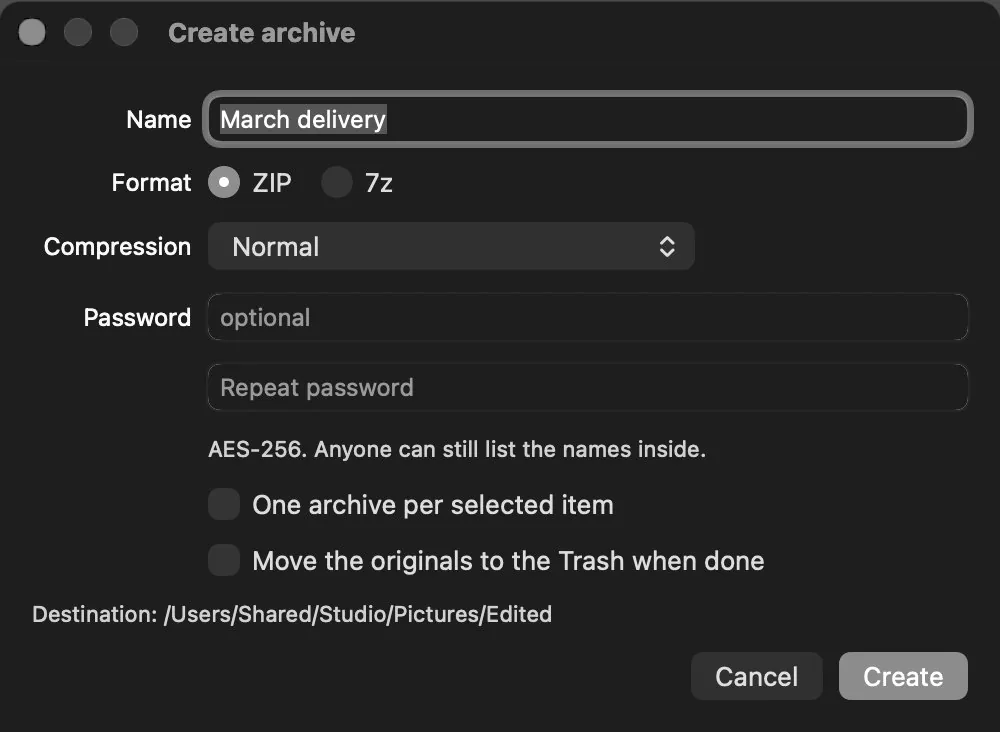
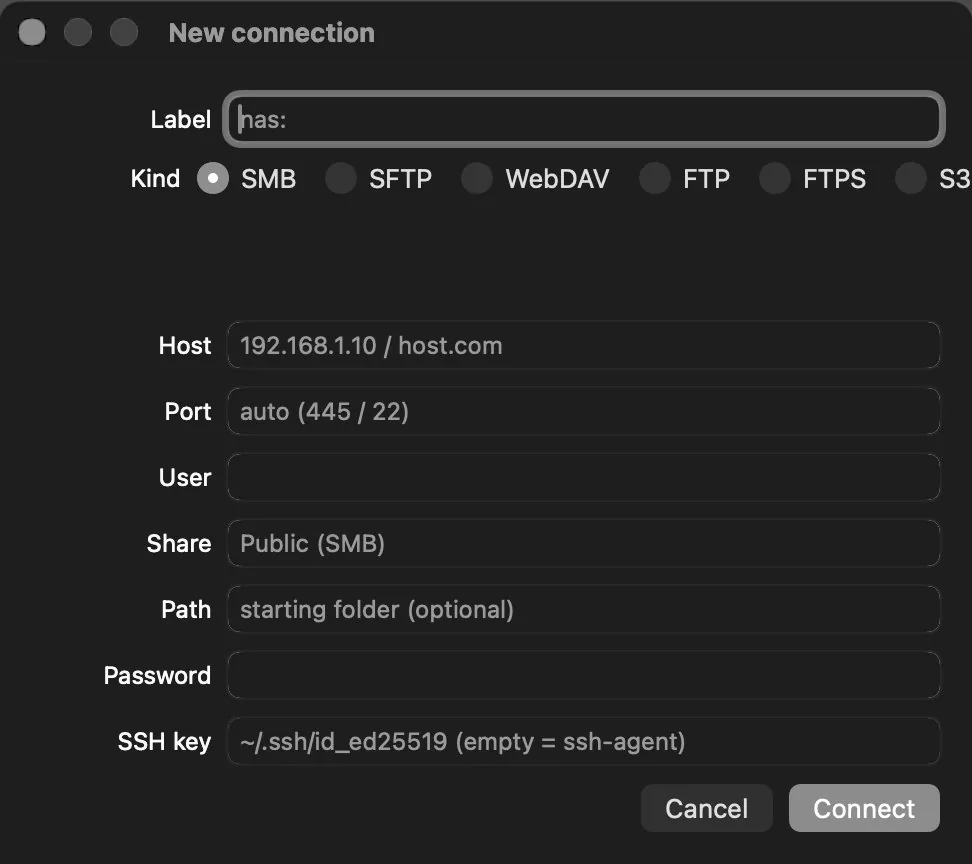
An archive opens like a folder. A server mounts like a drive. An S3 bucket is browsed like any other path.
10Keyboard
Native by default. Classic if you ask for it.
The shortcuts are macOS's, not another operating system's translated. Two deliberate departures: Return opens — rename is F2 — and ⌘→ and ⇧⌘→ copy and move to the other panel, because the Finder has no gesture for “act on the panel next door”. And since a Mac's top row leaves the factory as brightness and dictation, those two operations are also on ⌘→ ⌘← ⇧⌘→ ⇧⌘←, which depend on neither Fn nor any system setting.
Anyone coming from Total Commander turns on the preset in Settings and gets back the full keymap, the function-key bar and the terminology. Every shortcut can be reassigned, one by one.
The preset also lets you pick ⌘ or ⌃ as the modifier for the editing commands, for fingers raised on Windows.
11Yours
It bends to your habits, not the other way round.
Four things you set up on the first day and never touch again — the ones that turn a good tool into your tool.
My commands. That terminal command you type every day comes to live one click away from your files: in the panel's context menu and in ⌘K. You say what it applies to —files, folders, or the folder you are in— and which extensions, and it only appears when every file you marked fits it. Paths are quoted for you, apostrophes included.
Colour rules. Temporaries dimmed, anything over a gigabyte in amber, whatever you touched today picked out. Five questions rather than a query language, and the first rule that matches paints the row: the order of the list is the priority, and you drag it.
Type and the cursor goes. With the list focused, typing jumps to the file — what Windows has always done and the Finder never quite did. If the row you are already on still matches, it stays put.
Workspaces. Save both paths, their tabs and the mode under a name, and come back to that arrangement when the job comes back.
And cd works both ways. Typing it in the command line moves the panel, instead of launching a child shell that changes folder and dies. Absolute, relative, ~, - and ..; and what does not exist is said out loud.
Three colour rules at work —the huge, the recent, the disposable— and a command of your own in the context menu.
12Looks
Dense in the dark, flawless in the light.
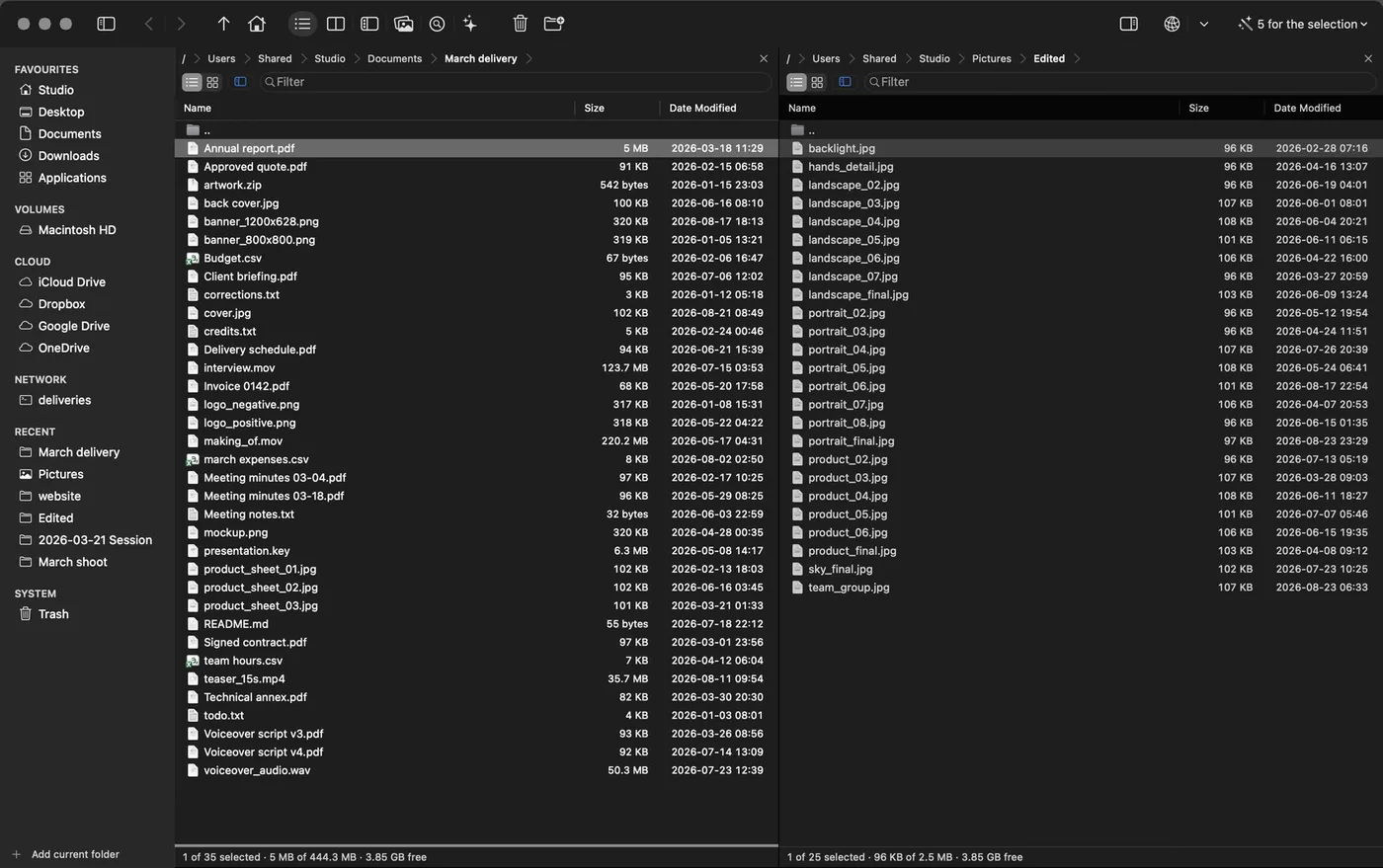
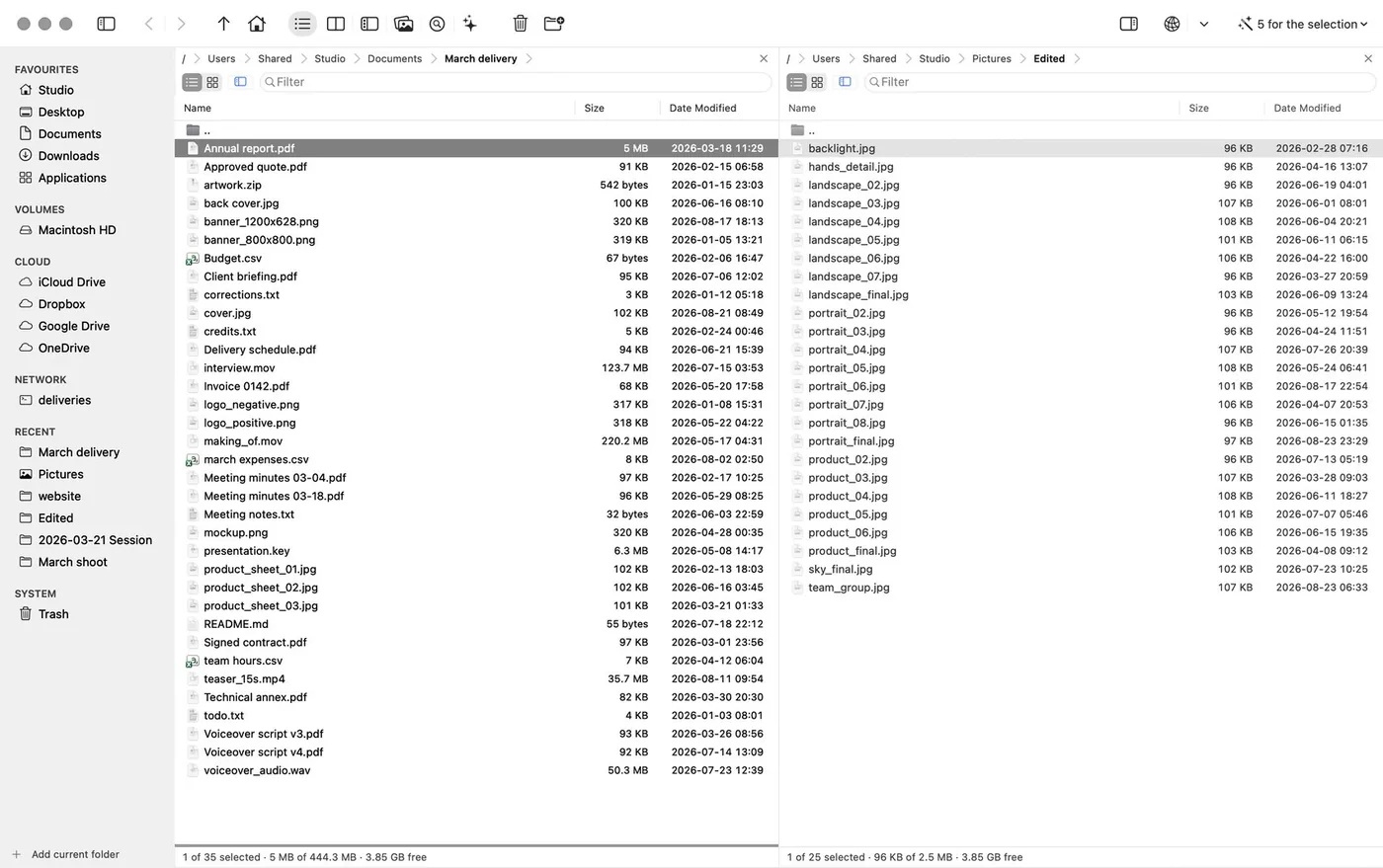
Compact rows, the system typeface, no gratuitous animation and not one corner that isn't macOS. Light mode isn't an automatic inversion: it was designed separately, because a dimmed pane that reads in the dark disappears in the light.
The active pane is marked with a 3 pt accent bar instead of dimming the other one, so the inactive pane still reads at full contrast. Neither half of the window is second class.
13The other way to use it
And if you would rather have it all in view.
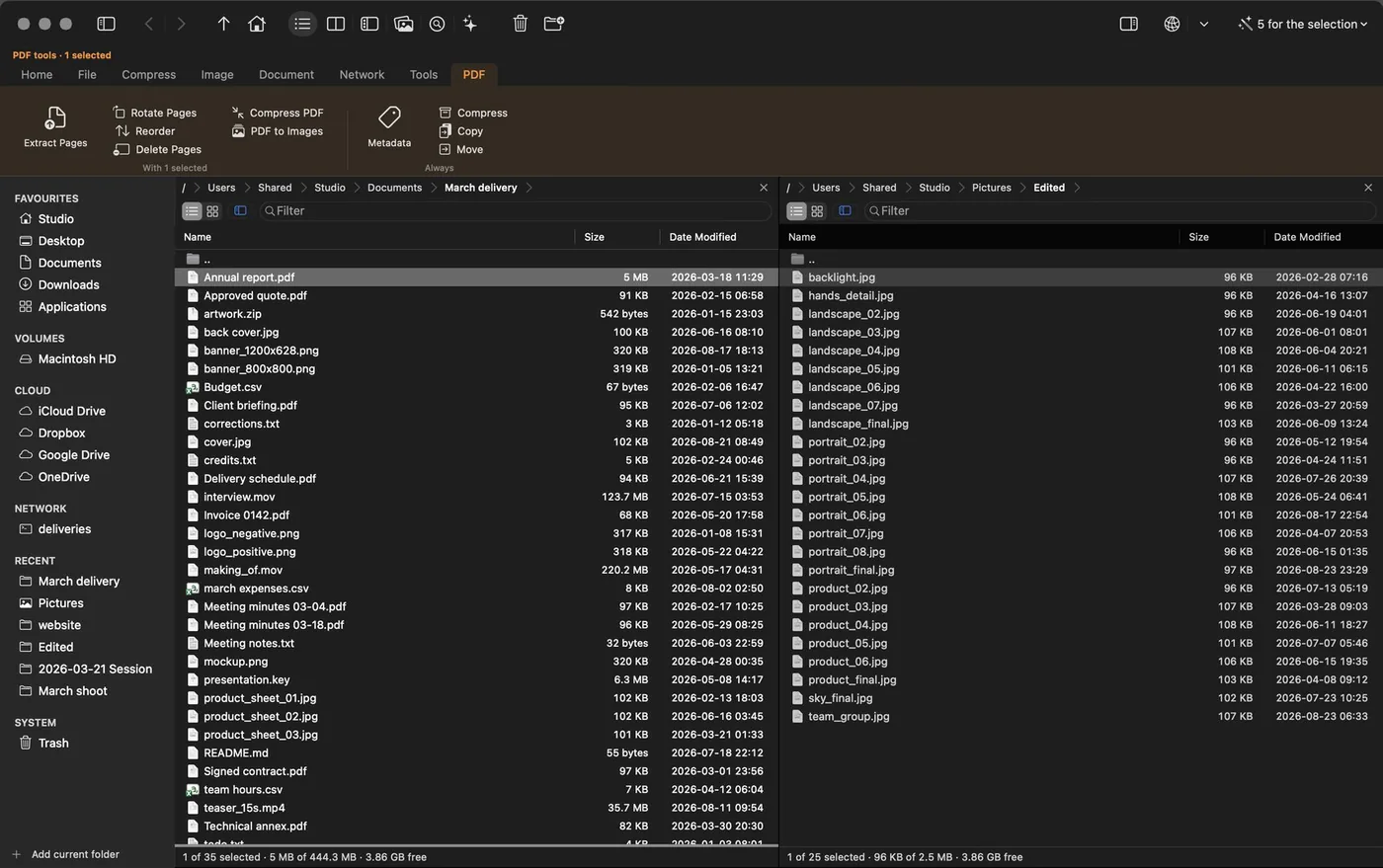
What you see above, everywhere else on this page, is the app fresh out of the box: the toolbar carries navigation and view only —where am I and how am I looking at it— which is what ForkLift and Transmit keep up there.
Anyone who wants the commands on screen turns on the action bar in Settings: tabs by theme —Home, File, Compress, Image, Document, Network, Tools— and below them the commands in groups, with the modes one click away. The function-key row at the foot turns on the same way, and the Total Commander preset brings it along.
One command surface at a time, and you pick it: either the clear bar above, or this one with everything in front of you. It changes in Settings, and nothing needs restarting.
14Tools
Forty things to do to a file, without opening another app.
Sorted the way the application itself sorts them. None of them brings dependencies: they are system frameworks used properly, which is why they fit here without turning a file manager into a suite.
What you can do to a file without opening it.
Batch rename ⌃M
A template with a counter, search and replace with regex, and the list before you accept.
Split and join ⌘K
Chop up for a medium that won't take the size, and put the parts back together with verification.
Permissions ⌘K
Read, write and execute by user, group and others.
Duplicate by clone ⌘D
Instant on APFS: the copy takes up nothing until it changes.
Aliases and hard links —
Both of them, from the pane's context menu.
Encrypted folder ⌘K
An AES-256 image that mounts as a volume and grows as you fill it.
Replace in files ⌘K
It counts before it touches anything — “412 occurrences in 37 files” — shows one file before and after, and the whole run can be taken back from the history.
Indexed folders ⌘K
Your own index of names for the folders you pick: it searches where Spotlight will not look, and by path too. It says how much space it takes and a button throws it away.
Verify against a manifest ⌘K
Checks a whole folder against a checksums.sha256, yours or someone else's.
Remove quarantine ⌘K
For downloads you already trust. Gatekeeper stops treating them as just arrived.
An archive opens like a folder; you don't have to extract it to look inside.
Step into the archive ↩
zip, tar, gz, bz2, xz, 7z, rar, iso or jar: navigated like any other folder.
Create zip and 7z ⌥F5
With compression level, AES-256 password and «one archive per item».
Test integrity ⌥F6
Reads every member and says whether the archive is intact or damaged.
Add and remove members ⌃⇧A · ⌃⇧R
Without extracting everything: it rewrites to a temporary file and swaps it in one go.
Extract to the other pane ⌥F9
Through the same queue and with the same progress as an ordinary copy.
Operations on photographs that normally mean opening an editor.
Convert ⌘K
Format, quality and size, with the weight estimated first. The originals stay where they are.
Strip location and camera ⌘K
A whole batch with no GPS and no gear data, in fresh copies.
Images to PDF ⌘K
One per page, in the pane's order, each page the size of its image.
A/B comparator ⌘K
Two almost identical frames alternating in the same spot, like a blink comparator.
Viewer F3
Walks the folder with the arrow keys, real 1:1 zoom and the metadata on top.
RAW thumbnails —
From the embedded preview, without developing the whole negative.
PDF, without opening another application. None of this touches the original.
Merge ⌘K
In the pane's order — the only order you have chosen.
Extract pages ⌘K
Picking them in the grid, or by a range written «1-3, 7, 10-».
Rotate, delete, reorder ⌘K
Rotating is metadata in a PDF: instant however large the scan.
Compress PDF ⌘K
With the system filter, which keeps the text selectable. If it came out larger, it writes nothing.
PDF to images ⌘K
At whatever dots per inch you choose.
Edit metadata ⌘K
Title, author, copyright and tags, in bulk and with the cost declared before you press.
Viewer F3 · ⌘F
Searches text inside the document and shows the thumbnail rail.
A server mounts like a drive, and you work exactly as you do locally.
SMB, SFTP, WebDAV and FTP ⌘N
The connection stays in the sidebar. The credentials, in the Keychain.
Remote writing —
Upload, rename and delete, through the same queue as local copies.
Bandwidth limit Settings
So an upload doesn't choke the line while you work.
Remote editing F4
The file on the server opens in your editor and goes back when you save.
Cloud recognized ⌥⌘D · ⌥⌘E
iCloud, Drive, Dropbox and OneDrive, with a mark on whatever isn't downloaded.
rclone bridge ⌘K
Optional, if you already have it installed with remotes configured.
Questions about a folder that no file manager usually answers.
Duplicates by content ⌃⇧D
Size, then a partial digest, then SHA-256. It never lets you delete every copy in a group.
Disk usage map ⌃⇧U
A treemap with the list beside it; clicking a tile takes the pane there.
Compare and synchronize ⌃⇧C · ⌃⇧S
Only in A, only in B, different size or date, contents by hash. And on a schedule.
Directory report ⌘K
PDF, HTML, text, CSV or JSON, with its .sha256 beside it. Two runs produce the same bytes.
Card ingest ⌘K
To one or two destinations, verifying by re-reading, with a manifest and an eject at the end.
FITS session ⌃⇧F
Summarizes a night of captures by reading only the headers.
Cleanup mode ⌥⌘6
Regenerable caches, leftovers from uninstalled apps, and whatever takes up space without earning it.
Compare as text and against HEAD ⌘K
Two files line by line, or what you changed since the last commit.
15Automate
The work that repeats, without opening the app.
Three actions in macOS's Shortcuts app and an AppleScript dictionary. The card empties itself, verifies itself and leaves its manifest while you are busy with something else.
Ingest Card does what the window does —one or two destinations, organise, re-read every copy and leave the checksums.sha256— with nothing open at all. Verify Checksums reads a folder back against its manifest and returns a yes or a no the rest of the shortcut can decide on. Open Folder puts one or two folders in the panels, one per panel.
You can also ask for them out loud: «Ingest a card with OrthodoxMac». The names and the fields are in English, as every scripting interface on this platform is, and deliberately so: a script that changes language with the system is a script that breaks when it moves to another machine.
And the same gate as the app. With the trial over and no licence, an action that writes refuses and says why. Verifying does not: reading is never blocked, because a file you can check nothing about is worse than one you cannot copy.
AppleScript, for anyone who would rather script it: windows, panels, and each one's folder and selection, all readable and settable. The verb that copies is called transfer —copy already belongs to the Standard Suite— and it goes through the same queue, the same conflict dialog and the same history as any copy started by hand.
Recipes, for the work that repeats inside the app. A recipe is a dialog's answers with a name on them: from where, to where, with which filter, with subfolders or without, verifying at the end and leaving a manifest if you want one. Run it from its own window or from ⌘K, and from there it is an ordinary copy: the same plan before it starts, the same questions about conflicts, the same queue and the same line in the history that can undo it. No daemon: it runs when you run it and with the app open, because scheduling it in the background would mean installing something that keeps working when you are not here.
And the terminal, both ways. om installs from the app's own menu as a link in ~/.local/bin — no administrator — and makes the app one more piece of your pipeline: om . opens where you are, om --marks prints what is marked one path per line, and anything that prints paths can come back: rg -l TODO | om --set turns a command's output into a set in the panel, with every verb in the app on top of it. It talks to the app through the same AppleScript dictionary: no socket, no port, nothing running when you are not typing.
Four steps you build once. After that the card comes in on its own, and the only thing left on screen is the notice saying everything arrived.
And without building anything
Five phrases are registered on install, to ask for out loud or type into Spotlight: Ingest a card with OrthodoxMac, Offload my card with OrthodoxMac, Verify checksums with OrthodoxMac, Check my archive with OrthodoxMac and Open a folder in OrthodoxMac.
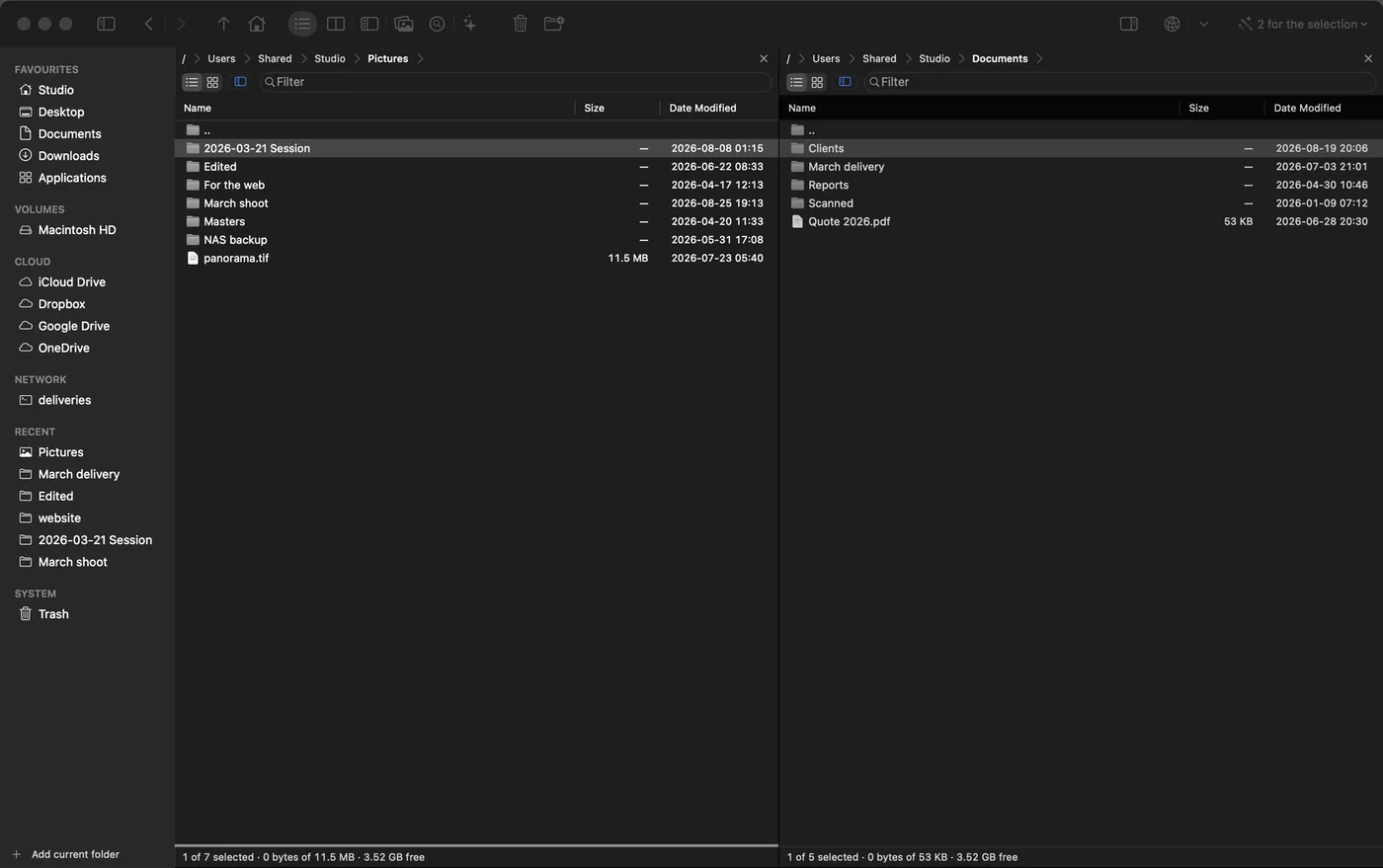
—Two panels
The gesture the Finder does not have.
Where from and where to, both on screen at once. Copying stops being dragging between two windows that cover each other.
One panel is the source and the other the destination. ⌘→ copies what is marked to the panel opposite and ⇧⌘→ moves it, with no “where to?” dialog, no dragging, no remembering which window was which. ⇥ switches sides. That is the whole mechanism, and the reason this kind of program exists.
And without fighting the Mac keyboard. The top row leaves the factory as brightness, dictation and volume, so a bare F5 never reaches any app: it would be Fn+F5. That is why the same gesture is also on ⌘→ and ⌘← — and ⇧⌘→ and ⇧⌘← to move — which need nothing configured. The arrow is the direction the files travel, not the panel you are standing in.
The Finder does not have that gesture and cannot: with one list, “the other place” is not on screen. Which is why people who copy files for a living — photographers, editors, systems people — end up with two windows and a memory problem.
And what is marked is what gets copied. The mark is one thing and the cursor another: you can walk the list without losing what you have chosen, which is exactly what the Finder's selection will not let you do.
—Getting around
The address bar macOS never had.
If you are coming from Windows, you recognize this without anyone explaining it. And it is the first thing you miss in the Finder.
The path isn't decoration: every crumb is a button, and the chevron behind it opens what that folder holds, with a tick on the one you are in. Jumping to a sibling folder stops being go up, look, go back in. It is one click.
Rather type it? ⌘L turns the strip into a text field with path autocompletion. The list suggests and never rewrites what you typed; Tab fills in only what every candidate shares; Esc goes back to crumbs — and so does losing focus, because walking away isn't confirming.
The address bar's two gestures. Click a tab to see the other one.
Which one are you?
Four different ways of needing this. Each one leads to its own part.
You empty cards you then format
Ingest to two destinations, verification that re-reads every byte, and a manifest anyone can check without this app.
See cards and deliveries → You come from WindowsYou miss Total Commander
A preset with the classic keymap, the function-key bar, the numeric keypad for selecting by pattern, and the old vocabulary.
See the preset and the shortcuts → You write codeYou live among repositories and huge folders
Syntax-coloured preview, compare with the last commit, skip rebuildable caches when copying, and search in order to act on what you found.
See find, then act → You work with your filesThe Finder falls short
Two panels, multi-rename, duplicates by content, a map of the disk, PDF and images without opening another app.
See the tools →16Everything else
The complete index.
Everything else, in one table, with its shortcut. Type to filter it — just like in the app.
| Feature | What it does | Shortcut |
|---|---|---|
| Navigation | ||
| Tabs per pane | Each with its own history; they survive a restart. | ⌘T · ⌘W |
| Sidebar | Favorites, volumes, cloud, connections, recents and trash. | ⌥⌘S |
| Go to folder | Editable path bar with clickable breadcrumbs. | ⇧⌘G |
| Quick filter | By substring or glob, without leaving the pane. | ⌘F |
| Select by criteria | Mark by mask, name, extension, size, date or «is a folder», adding to or subtracting from what is already marked — and the sheet counts how many rows would end up marked before you accept. | ⌘K |
| Indexed folders | Your own index of names for the folders you choose — the ones Spotlight ignores — searchable by name or by path. It says how big it is, when it was last read, and a button deletes it. | ⌘K |
| Branch view | The whole subtree as one flat list. | ⌃B |
| Favorite folders | An editable list of quick jumps. | ⌃D |
| Folder tree | An expandable side panel, beside the files rather than in their place. | ⌘K |
| Second window | Another full window, with its two panes and its own session. | ⌘N |
| Automatic refresh | FSEvents, plus its own polling on SMB and WebDAV, where FSEvents doesn't reach. | — |
| Linked navigation | Both panels move together through the same structure, to compare two copies of a tree folder by folder. | ⌘K |
| Operations | ||
| Cut and paste files | With a visual mark on whatever is about to move. | ⌘X · ⌘V |
| Trash and delete | To the trash, or permanently with a double confirmation. | ⌘⌫ · ⌥⌘⌫ |
| Browsable trash | With «Put Back» to the original place. | — |
| Exportable log | Everything the app did to your files — including what failed — searchable, filterable by kind and by date, and exportable to CSV or JSON. | ⌥⌘H |
| Duplicate by clone | Instant on APFS: the copy takes up nothing until it changes. | ⌘D |
| Folder sizes | A recursive sum of the selection, in its own column. | ⌥⇧↩ |
| «On disk» column | What it really occupies, which on APFS isn't the same as its size. | — |
| Recipes | The work you repeat, saved with a name: source, destination, filter, subfolders, verification and manifest. Run from ⌘K, and through the same plan, the same queue and the same history as any other copy. | ⌘K |
| Replace in files | Counts the occurrences before touching anything, shows one file before and after, and the whole run reverts from the history. It never touches binaries, .git, or anything over 5 MB. | ⌘K |
| Shelf | Gather files from several folders and drop them all at once. | — |
| Permissions | Read, write and execute by user, group and others. | ⌘K |
| Remove quarantine | For downloaded files you already trust. | ⌘K |
| Hard link | A second name for the same bytes, on the same volume; and aliases for when what you want is a shortcut. | ⌘K |
| Compare | ||
| Compare folders | Only in A, only in B, different size or date, contents by hash. | ⌃⇧C |
| Synchronize | With a direction per file, run by the same engine. | ⌃⇧S |
| Compare as text | Two files line by line, inside the app. | ⌘K |
| Compare with the commit | What you changed since HEAD, without leaving the pane. | ⌘K |
| View | ||
| Image viewer | Walks the folder with the arrow keys, real 1:1 zoom and a metadata overlay. | F3 |
| PDF viewer | Search inside the document and a thumbnail rail. | F3 · ⌘F |
| Code preview | Syntax coloring, soft wrap for long lines, and JSON, XML and plist validation. | F3 |
| Star rating | 1 to 5 rate as you review, 0 clears and X rejects, and then you filter by what you marked. The rating goes in the file — in the attribute Spotlight indexes — so it travels with the copy. | 0–5 |
| Merge PDF | Several into one, in the pane's order; the originals aren't touched. | ⌘K |
| Extract pages | By a range written the way you write it: 1-3, 7, 10-. | ⌘K |
| Cloud, network and shell | ||
| Cloud providers | iCloud, Drive, Dropbox and OneDrive recognized, with a mark on whatever isn't downloaded. | ⌥⌘D · ⌥⌘E |
| Remote writing | Upload, rename and delete on SFTP and FTP, through the queue and with a bandwidth limit. | — |
| S3 and compatibles | Amazon S3, Backblaze B2, Wasabi, MinIO and DigitalOcean Spaces, signed by us, with the keys in the Keychain. | ⌘K |
| rclone bridge | Optional, if you already have it installed with remotes configured. | ⌘K |
| Share and AirDrop | The Finder's own gestures, from the pane's context menu. | — |
| Total Commander preset | Brings back the classic keymap, the function-key bar and the wording. | Settings |
| The om command | Open where you are, print what is marked for a pipe, and turn any command's output into a set in the panel. | Menu |
| Command line | cd moves the active panel instead of starting a shell that dies. | ⌃` |
| Yours | ||
| My commands | Your own shell commands, with placeholders and an extension filter, in the context menu and the palette. | ⌘K |
| Colour rules | By extension, name, size, age or being a folder; the first match paints the row. | Settings |
| Type-ahead jump | Type in the list and the cursor goes to the file; a prefix beats a mere «contains». | — |
| Workspaces | Saves both paths, their tabs and the mode under a name, and returns to that arrangement. | ⌘K |
| Per-folder rules | A folder can remember its view, its sort order, its columns and whether it shows hidden files. Only what you chose there; everything else follows your global preference. | ⌘K |
| Reassignable shortcuts | Any command, one at a time, over the native scheme or the preset. | Settings |
| And besides | ||
| Help inside the app | Ten searchable chapters that print the shortcuts of whichever keymap you have on. | ⌘? |
| Part of the system | «Open in OrthodoxMac» in the Services menu and in the Finder's «Open With», and folders dropped on the Dock icon. | — |
| Remove an application | The app and what it left in ~/Library, matched by bundle identifier rather than by name. | ⌘K |
| Remote editing | F4 on a file on the server: it opens in your editor and goes back when you save. | F4 |
| Speed graph | Instant and average speed while copying: it tells you whether it stalled, not just how much is left. | — |
| Connection labels | Type nas:/projects in the path bar and you land inside. | ⌘L |
| Home folder | The house goes where you say, not where the system says. | ⇧⌘H |
| Edit inside an archive | Change a file inside a zip without extracting it all and packing it again. | F4 |
| macOS Shortcuts | Three actions for the Shortcuts app: ingest a card, verify checksums and open folders. By voice too. | ⌘K |
| AppleScript | Windows, panels, their folder and their selection, readable and settable; and a verb that copies through the same queue. | — |
| Offline licence | The key is verified on your Mac, with elliptic-curve cryptography. The app does not phone home to let you work. | — |